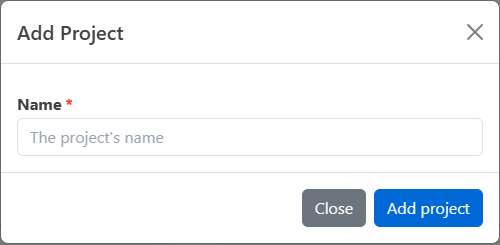
A project is one knowledge base: its own articles, categories, settings and web address. Your account can have several projects, for example product documentation, a developer portal and a blog. Everyone on your team can work on every project.
Click All Projects in the left navigation to see every project in your account. Each project shows its logo, name, web address and status: Active or Deleted. Click a project to open it.
To switch to another project while you're working in one, click All Projects at the bottom of the left navigation, then choose the project.
The number of projects you can create depends on your plan. If you've reached your plan's limit, HelpGuides shows a message instead of creating the project.
acme-product.helpguides.io. If that's taken, a number is added. If the name contains a reserved word, such as docs, help or support, the project gets a random subdomain instead. To change it, contact support.Next, add your branding and choose your defaults in Project Settings. If you already have content elsewhere, see Importing and Exporting Content. For a guided tour, see Welcome to HelpGuides.io.
You're taken back to All Projects, where the project is marked Deleted. The project is now scheduled to be permanently deleted.
Export firstBefore you delete a project you might need again, back up its posts. On the Import / Export tab in Settings, click Export Posts.
If you deleted a project by mistake, you can bring it back until it's permanently deleted. Anyone on your team can do this.
The project opens and is Active again, with its content and settings as they were.