API Keys and the REST API
API keys let your own scripts and applications read and manage a project's content through the HelpGuides REST API. You create keys per project, and each key has only the permissions you give it.
Creating an API key
- Open your project, click Settings, then open the API Keys tab.
- Click Create API Key.
- Enter a Name that says what the key is for, for example Production integration. Names can be up to 60 characters.
- Under Permissions, choose what the key may do. You must choose at least one.
- Click Create Key.
- Click Copy and store the key somewhere safe, such as your secrets manager.
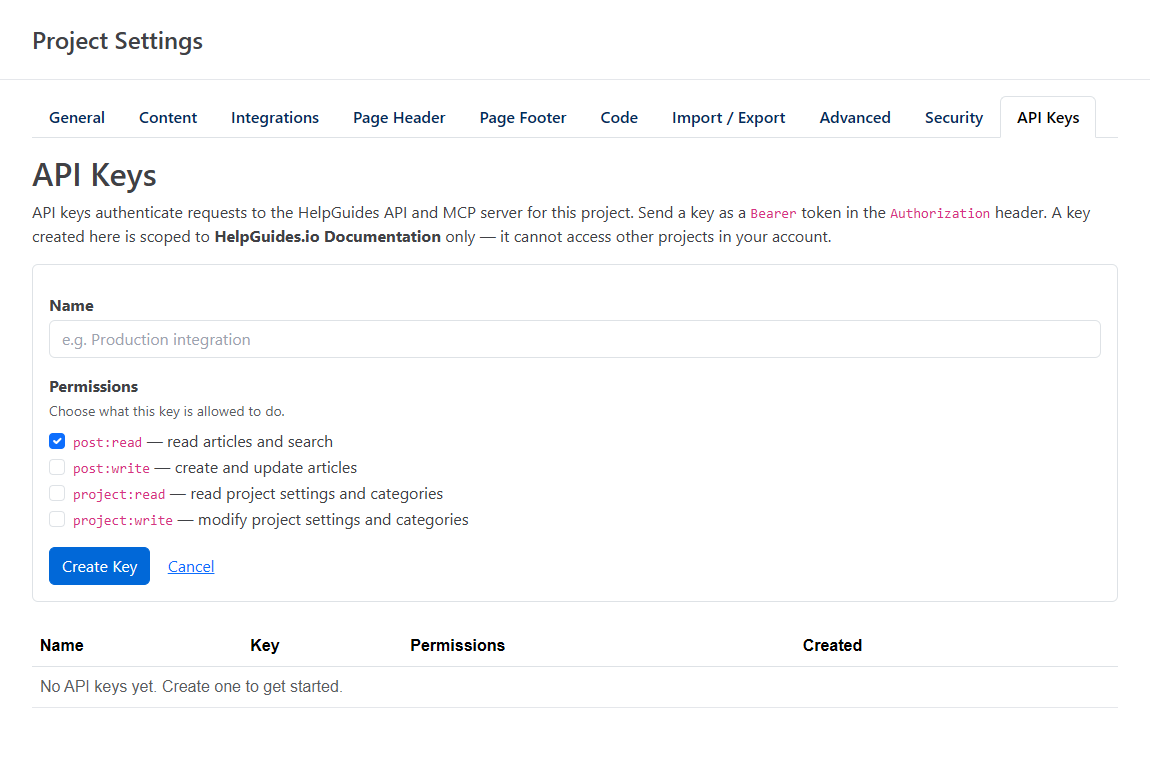
Permissions
| Permission | Allows |
|---|---|
post:read | Reading articles, categories, revisions and article metrics. Selected by default. |
post:write | Creating, updating and deleting categories and articles. |
project:read | Reading project settings, and searching the project. |
project:write | Changing project settings and managing the project's API keys. |
Give each key only the permissions it needs. A key that only reads content should have post:read, plus project:read if it also searches.
Managing keys
The table on the API Keys tab lists the project's keys with their Name, the last four characters of the Key, their Permissions and when they were Created. Each row has three actions:
- Copy copies the full key to your clipboard.
- Rename changes the key's name. Its permissions stay the same.
- Revoke deletes the key after you confirm. Any integration using it stops working immediately, and this can't be undone.
You can't change a key's permissions. To change them, create a new key, switch your integration to it, then revoke the old one.
Treat keys like passwordsAnyone with a key can do everything its permissions allow. Don't put keys in client-side code, public repositories or screenshots. If a key may have been exposed, revoke it and create a new one.
Using the REST API
Send the key as a Bearer token in the Authorization header of each request. Requests go to https://helpguides.io/api/v1/.
Your project ID is the value after /project/ in the address bar when you're working in the project, for example https://helpguides.io/project/YOUR_PROJECT_ID/settings.
Responses
Every endpoint returns JSON in the same wrapper. Status is true when the request succeeded, and the data is in Response under a name that depends on the endpoint.
Endpoints
In the paths below, replace {projectuid}, {postuid} and {categoryuid} with real IDs.
| Method | Path | Permission | Description |
|---|---|---|---|
| GET | /api/v1/project/{projectuid} | project:read | Get the project's settings. |
| GET | /api/v1/project/{projectuid}/search?s={query} | project:read | Search the project and return the top 10 results. Add &article_only=true to return articles only. |
| GET | /api/v1/{projectuid}/categories/ | post:read | List the project's categories. |
| GET | /api/v1/category/{categoryuid} | post:read | Get a category. |
| GET | /api/v1/{projectuid}/category/{categoryuid}/posts | post:read | List the posts in a category with their ID, title, slug, status and dates. |
| POST | /api/v1/{projectuid}/category | post:write | Create a category. Returns its uid. |
| PATCH | /api/v1/{projectuid}/category/{categoryuid} | post:write | Update a category. |
| DELETE | /api/v1/{projectuid}/category/{categoryuid} | post:write | Delete a category. |
| GET | /api/v1/post/{postuid} | post:read | Get a post. Add ?include_html=true for its HTML and &include_blocks=true for its editor blocks. |
| GET | /api/v1/post/{postuid}/categories | post:read | List the categories a post is in. |
| GET | /api/v1/{projectuid}/post/{postuid}/revisions | post:read | List a post's saved revisions. |
| DELETE | /api/v1/{projectuid}/post/{postuid} | post:write | Delete a post. |
| GET | /api/v1/{projectuid}/metrics/project | post:read | Get summary metrics for the project's articles. |
To publish documentation for your own REST API in HelpGuides, see API Documentation Guide and Exposing Your APIs with openapi.json.
API keys and the MCP server
The MCP server doesn't use API keys. AI assistants such as Claude and ChatGPT connect to it by signing in to HelpGuides through OAuth, and can then search, read, create and update articles with the tools listed in Model Context Protocol Endpoints. To connect one, see Add Claude as an MCP Connector and Model Context Protocol.