Importing and Exporting Content
You can back up every post in a project as a .zip file, and import articles and categories from HubSpot or HelpDocs. Both run in the background, so you can keep working while they finish.
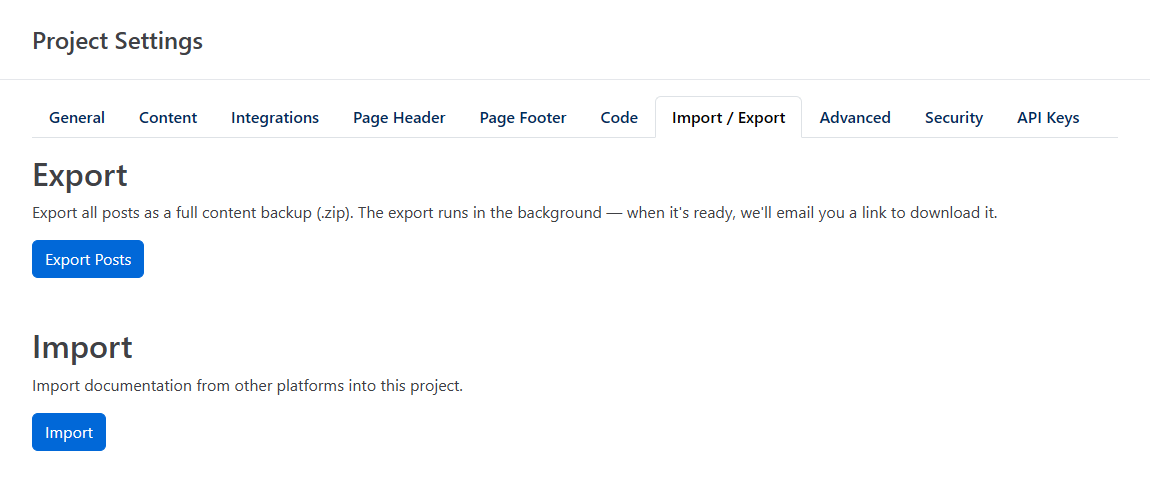
To get started, open your project, click Settings, then open the Import / Export tab. For the other tabs, see Project Settings.
Exporting your posts
- Under Export, click Export Posts.
- You'll see Export queued. We'll email you a download link when it's ready.
- When the export is ready, HelpGuides emails a download link to the address you sign in with.
- Click the link. If you aren't already signed in to HelpGuides, sign in, and the .zip file downloads.
The download link only works for people signed in to your HelpGuides account, so you can forward it to a teammate but not to someone outside your team.
What's in the export
The export includes every post in the project, whatever its status, including drafts.
| File | Contents |
|---|---|
export.csv | One row per post with its metadata and rendered HTML: post ID, parent ID, title, slug, HTML, status, post type, author ID, excerpt, featured image URL, meta description, keywords, sort order, total views, stale date, status notes, and the published, updated and created dates. |
posts/{postuid}.html | The rendered HTML of each post, one file per post. |
Images aren't included in the .zip file. The HTML refers to them by their CDN URLs. Categories and project settings aren't included either.
Importing content
HelpGuides imports the CSV exports from HubSpot's knowledge base and from HelpDocs.
- Export your articles as a CSV file from HubSpot or HelpDocs.
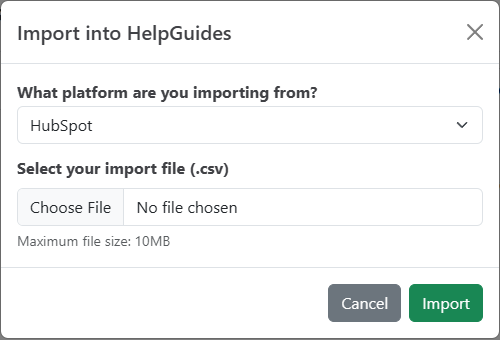
- In HelpGuides, under Import, click Import.
- In the Import into HelpGuides dialog, choose the platform you're importing from: HubSpot or HelpDocs.
- Under Select your import file (.csv), choose your file. It must be a .csv file, up to 10 MB.
- Click Import. You'll see Import Started when the file has been uploaded.
Articles appear in your project as the import runs. Large imports can take a while, because every image is downloaded as it goes.
What the import does
- It creates any categories that don't exist yet, then creates the articles and puts each one in its category.
- It keeps each article's title, slug, description (as the meta description) and dates.
- It converts each article's HTML into editor blocks.
- It copies images to the HelpGuides CDN. From HubSpot it copies every image; from HelpDocs it copies images hosted on
files.helpdocs.io. - It keeps each article's status, as shown in the tables below.
- It's safe to run again. Importing the same file a second time updates the articles it created before rather than adding duplicates.
HubSpot CSV columns
The file must have a header row with these columns, as HubSpot exports them:
| Column | Used for |
|---|---|
Article title | Title |
Article subtitle | Meta description |
Article URL | Slug (the last part of the URL) |
Article body | Content |
Category | Category |
Subcategory | Subcategory, created under its category |
Status | PUBLISHED becomes Published, DRAFT becomes Draft |
Archived | TRUE makes the article Private |
Last modified | Created, updated and published dates |
Article Language, Keywords | Read but not used |
HelpDocs CSV columns
| Column | Used for |
|---|---|
article_id | The article's ID |
relative_url | Slug |
title | Title |
description | Meta description |
body | Content |
category_id, category_title | Category |
created_at, updated_at | Dates |
is_published, is_private | Published if published, Private if published and private, otherwise Draft |
tags | Read but not used |
If your content is on WordPress, Freshdesk or another platform, contact support and we'll help you migrate it. If you're moving from WordPress and want to keep your existing URLs, also turn on Force Trailing Slash in Settings, on the Advanced tab.
Importing external images
Content that you paste in or write by hand can still point at images hosted on another site. To copy those images to HelpGuides too, open Settings, go to the Advanced tab and turn on Import External Images. From then on, when you save an article, HelpGuides downloads each image hosted elsewhere and serves it from its CDN. If a download fails, the article keeps the original image URL. See Working with Images for more about images.
After you import
- Check your categories and move articles if needed.
- If your old URLs differ from your new ones, add redirects so links and search results still work.
- On the Advanced tab, click Refresh Link Index so the SEO reports pick up links between your imported articles.
- If your documentation will stay on your own domain, see Setup Reverse Proxy.