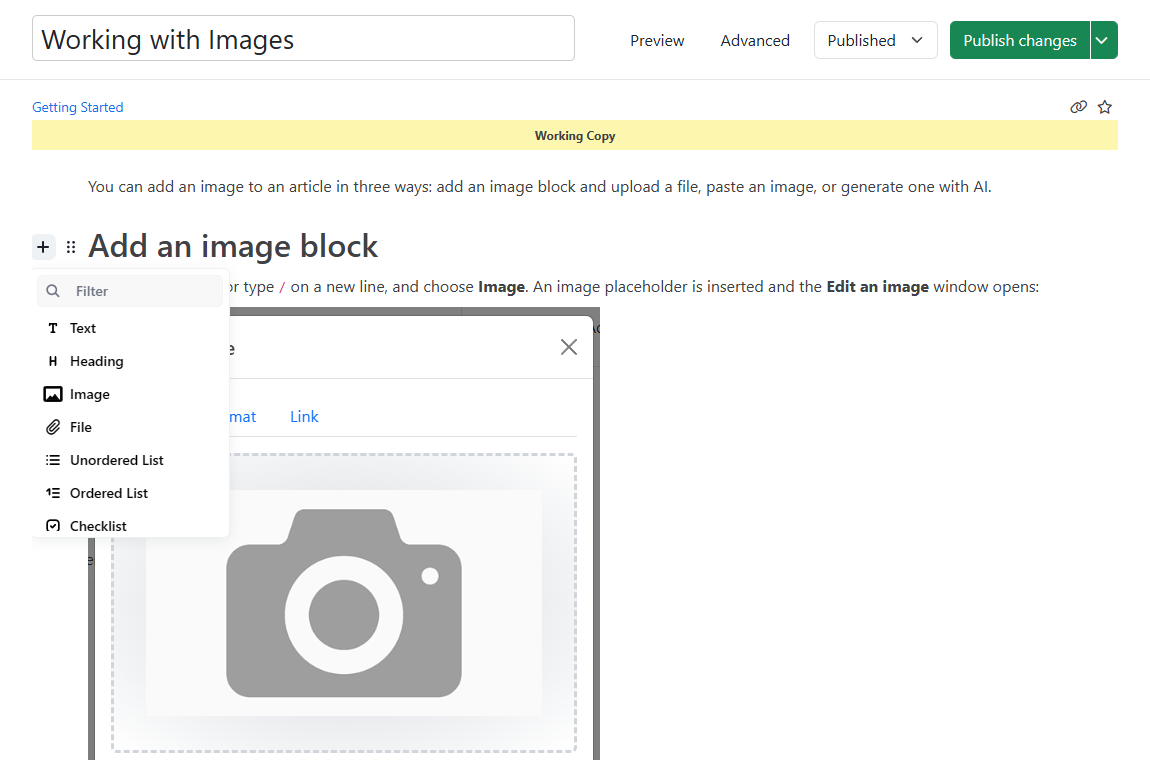
Every article is built from blocks. To add one, click + next to an empty line, or type / at the start of an empty line, and pick a block from the menu. For the basics of the editor, see Writing and Editing Articles.
| Block | What it's for |
|---|---|
| Text (paragraph) | Regular text. Select text to make it bold or italic, format it as inline code, or add a link. |
| Heading | Section headings, levels 2 to 6. New headings default to level 2. Headings build the article's table of contents. |
| List | Unordered (bulleted), ordered (numbered) or checklist items. Lists can be nested. |
| Table | Rows and columns. You can turn the first row into a heading row. |
| Quote | A quotation with an optional author. |
| Horizontal Rule | A dividing line between sections. |
| Block | What it's for |
|---|---|
| Image | Upload, paste, link or generate an image, with alt text, caption, size and link options. See Working with Images. |
| File | A downloadable file, or a link to a Google Doc or GitHub page, shown with an icon. See Working with Files. |
| Video | An embedded YouTube or Vimeo video. Paste the video's URL; it's converted to an embed automatically. Use Set Video URL in the tune menu to change it. |
Links aren't a block. You add them to text with the inline toolbar. See Working with Links.
A highlighted box with a Title and a Message. Choose the style in the tune menu:
| Style | Use it for |
|---|---|
| Recommended | Tips, notes and best practices. |
| Warning | Things that could cause problems or lose data. |
| Important | Information the reader must not miss. |
The title is shown exactly as you type it. Changing the style doesn't change the title.
| Block | What it's for |
|---|---|
| FAQ | A collapsible question and answer, published with FAQ structured data for search engines. See FAQ Section. |
| Checklist | A to-do list readers can tick off, with a progress bar (for example, "2 of 5 complete"). Each reader's progress is saved in their own browser. Good for setup guides. |
| Subcategories | Shows the subcategories of the article's category as a grid of cards. |
| Comment | An internal note for your team. Comments are removed from the published page, so readers never see them. |
The List block's checklist style shows fixed checkmarks that you set. Use the Checklist block when readers should track their own progress.
These blocks are off by default. Turn them on under Settings > Content > Editor Widgets, then click Save.
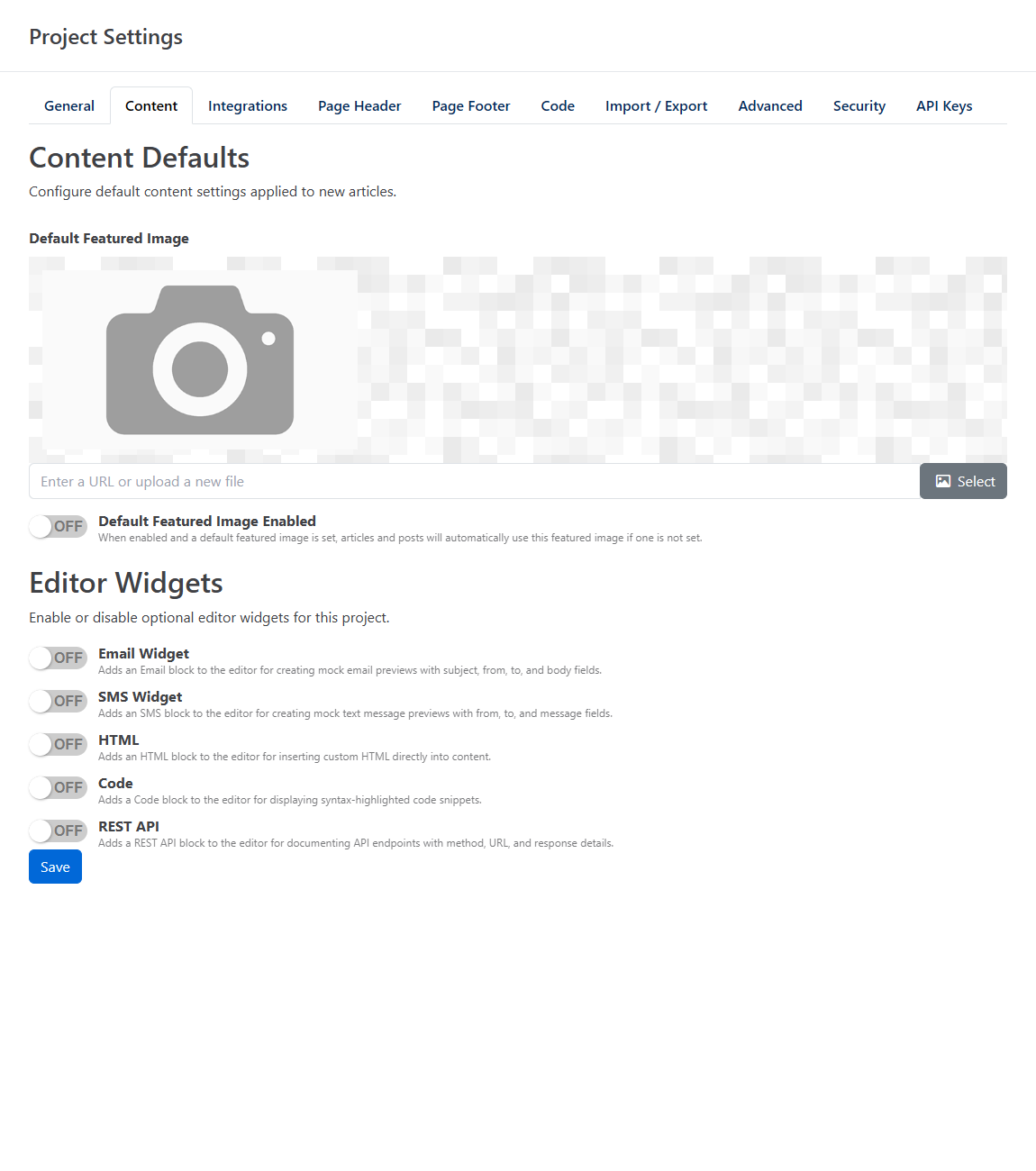
| Block | Setting | What it's for |
|---|---|---|
| Code | Code | Code with syntax highlighting. Choose the language from the list: C#, Console / Shell, CSS, HTML, Java, JavaScript, JSON, TypeScript or XML. |
| HTML | HTML | Custom HTML inserted into the page as-is. |
| REST API | REST API | Structured API documentation: path, query, header and request parameters, request examples, response parameters, and response examples with HTTP status codes. |
| Email Widget | A mock email with From, To, Subject and body fields. Useful for showing what a message looks like. | |
| SMS | SMS Widget | A mock text message. Set it to Sent or Received in the tune menu. |
Turning a block off hides it from the + menu. Blocks of that type already in your articles are kept.
When an article's post type is API Reference, the editor adds two fields above the content: an HTTP verb (GET, POST, PUT, PATCH, DELETE, HEAD, OPTIONS or TRACE) and the endpoint path. The verb is shown with the article. Use it together with the REST API and Code blocks to document an endpoint.
Choose the post type when you create the article, or change it later in the editor under Advanced > Display > Post Type. See Article Settings.