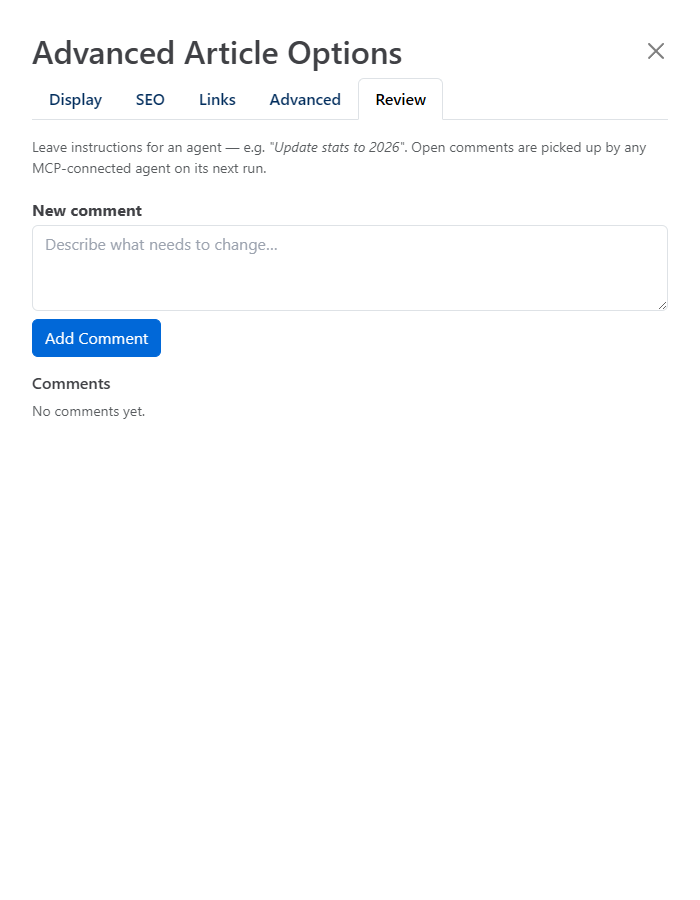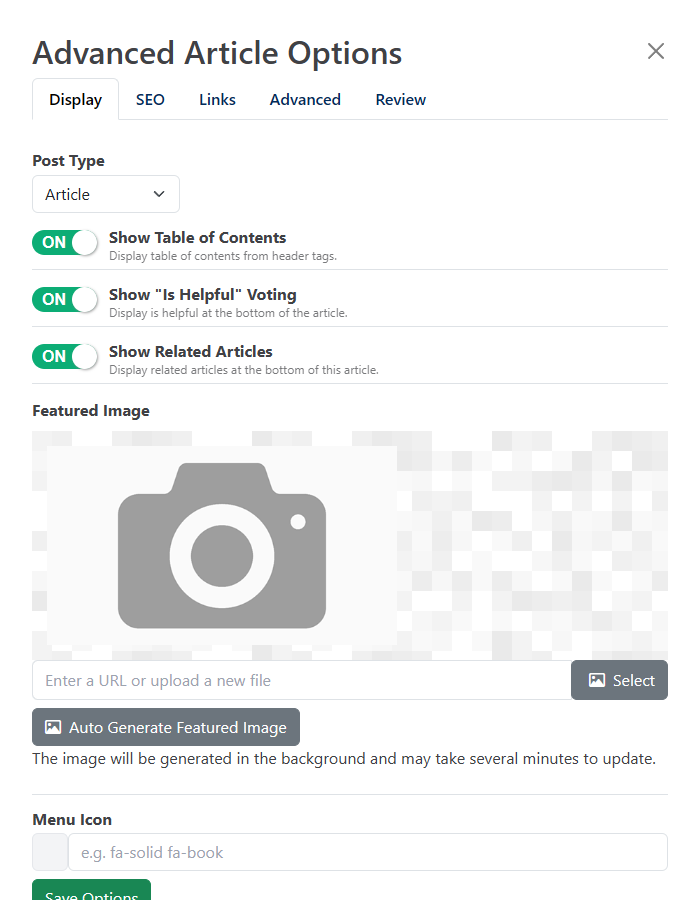
Each article has settings for display, SEO, links and publishing. To open them, click Advanced at the top of the editor. The Advanced Article Options panel slides out with five tabs: Display, SEO, Links, Advanced and Review.
Saving settingsClick Save Options at the bottom of the panel to save your changes. Settings are saved straight to the article, not to a working copy, so they apply to a published article immediately. Show Table of Contents and Allow Indexing save as soon as you switch them.
| Setting | What it does |
|---|---|
| Post Type | Article, API Reference or Blog Post. API Reference adds an HTTP verb and path above the content. See Editor Blocks Reference. |
| Show Table of Contents | Shows a table of contents built from the article's headings. |
| Featured Image | The image used for the article, for example when it's shared. Upload or choose an image. |
| Auto Generate Featured Image | Creates a featured image with AI. It's generated in the background and can take several minutes to appear. |
| Menu Icon | A Font Awesome icon shown next to the article in the navigation menu, for example fa-solid fa-book. A preview appears next to the field. |
To use one featured image for every article that doesn't have its own, turn on Default Featured Image Enabled under Settings > Content. To change the prompt used to generate featured images, go to AI Settings.
| Setting | What it does |
|---|---|
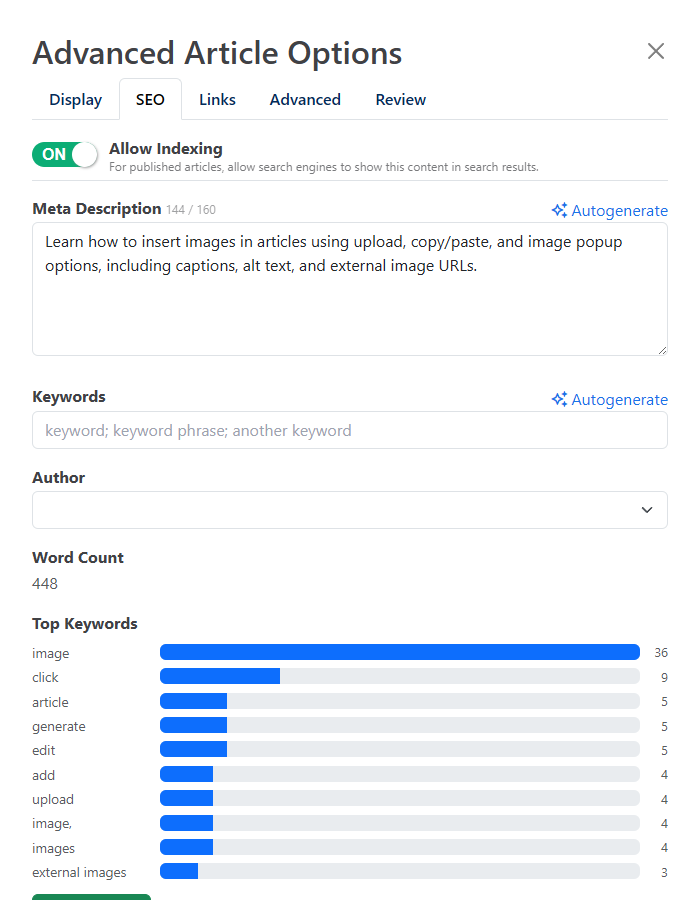
| Allow Indexing | Lets search engines show the article in search results. Shown only for published articles, and on by default. |
| Meta Description | The summary search engines show, up to 160 characters. Click Autogenerate to have AI write one; it's saved straight away. If you leave it empty, HelpGuides uses the start of the article. |
| Keywords | Keywords and phrases, separated by semicolons. Click Autogenerate to have AI suggest them; they're saved straight away. |
| Author | The author shown on the article. The list contains the people set up as authors on the Authors page. |
| Word Count | The number of words in the article. Updated each time you open the tab. |
| Top Keywords | The words and phrases used most often in the article, as a bar chart. |
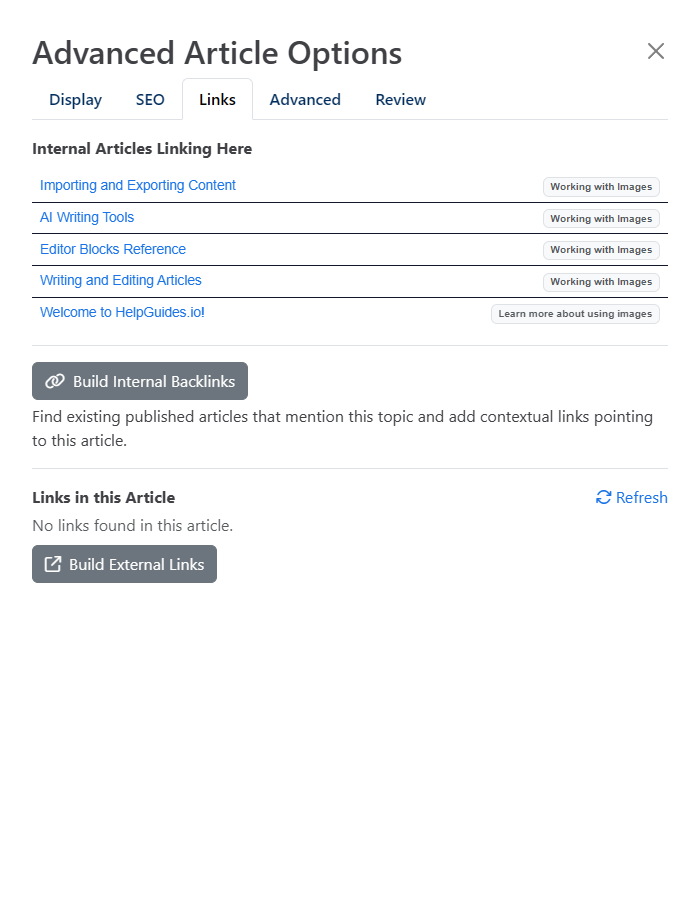
The Links tab shows the articles that link to this one (Internal Articles Linking Here) and every link in this article (Links in this Article). It also has AI tools that add internal and external links for you. See AI Writing Tools.
| Setting | What it does |
|---|---|
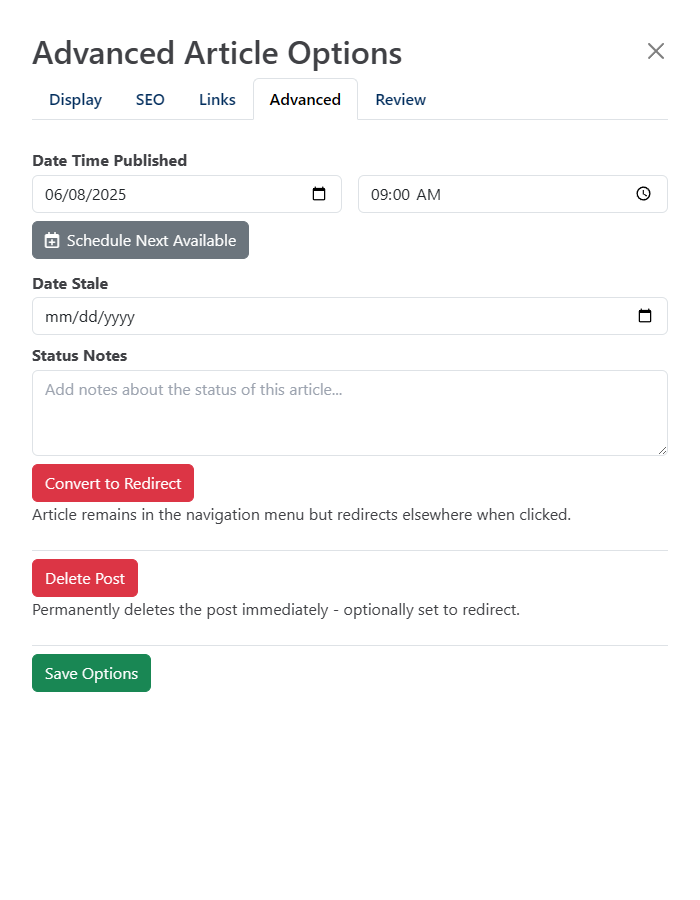
| Date Time Published | The article's publish date and time, in your local time. Set a future date to schedule the article. |
| Schedule Next Available | Fills in the next day with nothing published or scheduled, at 9:00 AM, and switches the status to Scheduled. |
| Date Stale | The date the article should be reviewed. From that date the editor shows Article is stale as of the date. |
| Status Notes | Notes or instructions about the article's status, for your team or an AI agent. |
| Delete Post | Permanently deletes the article straight away. You can choose Delete and add a permanent redirect (HTTP 301) and enter a Redirect URL so visitors to the old URL are sent somewhere useful. |
For scheduling step by step, see Scheduling Articles and the Content Calendar.
Delete Post can't be undoneTo take an article down but keep it for 30 days, set its status to Deleted instead. See Writing and Editing Articles.
The Review tab holds comments with instructions for an AI agent, such as "Update stats to 2026". A badge on the tab shows how many comments are open. See Review Comments and AI Agents.