AI Writing Tools
The article editor has AI tools that write meta descriptions and keywords, create images, and add internal and external links. Most of them are in Advanced Article Options: open an article and click Advanced.
Meta description and keywords
On the SEO tab:
- Click Autogenerate next to Meta Description to write a description of up to 160 characters from the article's content.
- Click Autogenerate next to Keywords to pick up to 10 keywords, separated by semicolons. Words from your project's name are left out.
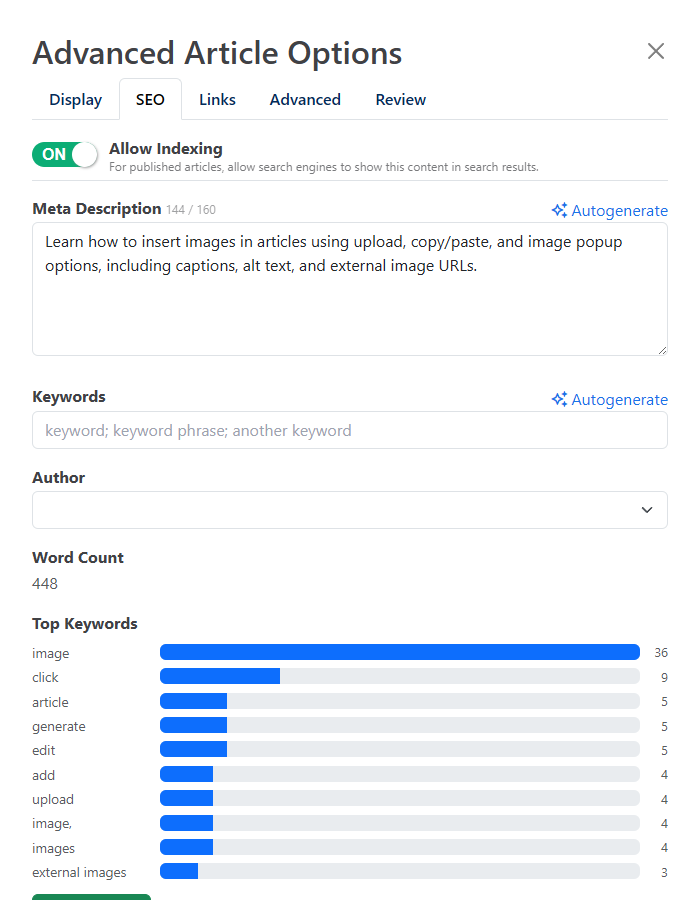
Both are saved as soon as they're generated. Read them over, edit if needed, and click Save Options. If you publish an article without a meta description, HelpGuides writes one for you.
Featured image
On the Display tab, click Auto Generate Featured Image. The image is created in the background and can take several minutes. The editor checks for it every few seconds and shows it when it's ready; if it takes longer, reload the page later. The new image replaces the current featured image.
Images are landscape, 1536 × 1024 pixels, and follow the Featured Image Prompt in AI Settings, with the article's title added.
Generate an image in an article
- Add an image block. The Edit an image popup opens (see Working with Images).
- Click the Generate tab.
- Under Describe the image you want, describe the image.
- Choose an Image Size: Square (1024 x 1024), Landscape (1536 x 1024), Portrait (1024 x 1536) or Auto.
- Click Generate Image.
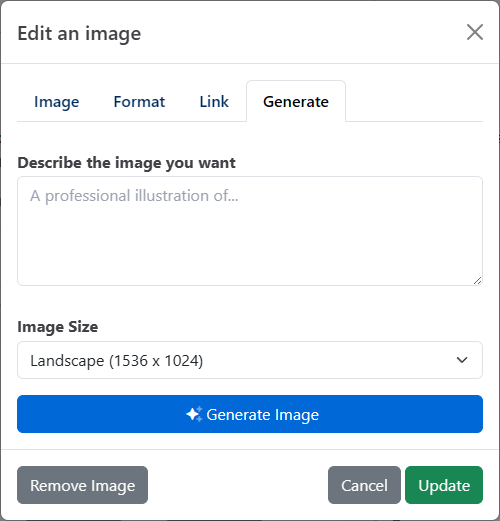
The image block shows Generating image... while it's created, then the finished image appears in its place. You can keep editing in the meantime.
Links
The Links tab shows how an article connects to the rest of your site and can add links for you.
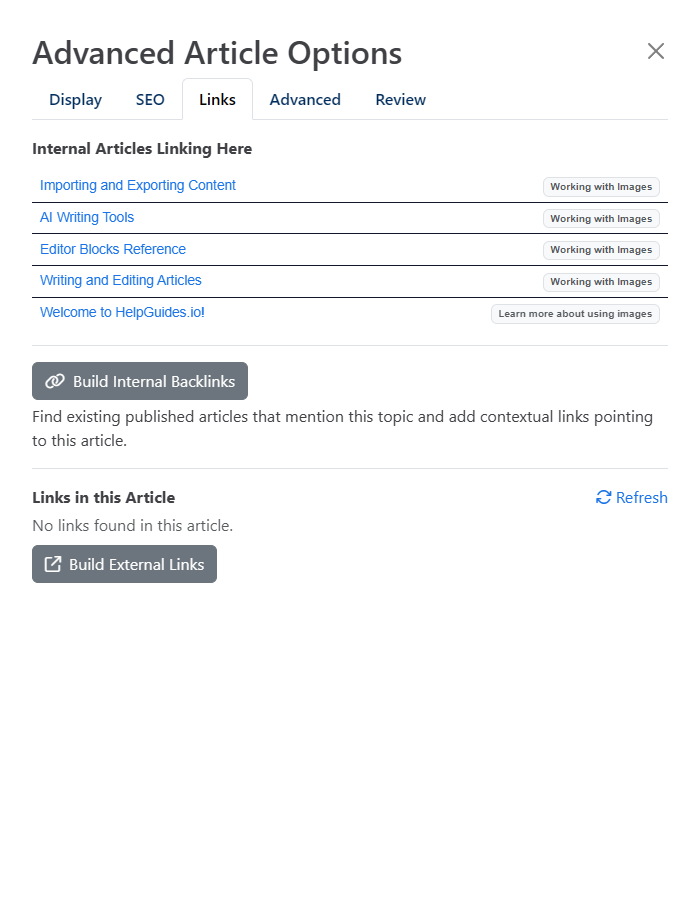
Internal Articles Linking Here
Lists the other articles that link to this one, with the anchor text each uses. Click an article to open it. To remove a link, hover over the row and click the trash icon. The link is removed from the other article and that article is saved straight away.
Build Internal Backlinks
Finds related articles and adds a link to this article in each one, with anchor text chosen by AI from their existing sentences. The button only appears once the article is published. If the article has no keywords yet, HelpGuides generates them first, because they're used to find related articles and anchor text.
- It looks at up to 15 related published articles and adds a link to at most 5.
- It skips articles that already link to this one.
- It skips articles that already link to 3 or more other articles in your project, so no article fills up with links.
When it finishes, it lists each article it changed and the anchor text it used. Those articles are saved straight away. AI assistants can do the same thing with the build_links tool (see Model Context Protocol Endpoints).
Links in this Article and Build External Links
Links in this Article lists every link in the article, marked internal or external. Click Refresh after editing.
Build External Links adds links to authoritative outside sources, such as official documentation, Wikipedia, government sites and established publications. It aims for about one link per 375 words, links only phrases already in the article, uses each website once, never links to competing products, and adds links in paragraphs, quotes and callouts but not headings.
Links are saved to the article straight awayBuild External Links saves the article as soon as it finishes, even when it's published. Reload the editor before making more changes, so your next save keeps the new links.
For adding links by hand, see Working with Links. To let an AI assistant draft and edit whole articles, see Model Context Protocol and Review Comments and AI Agents.