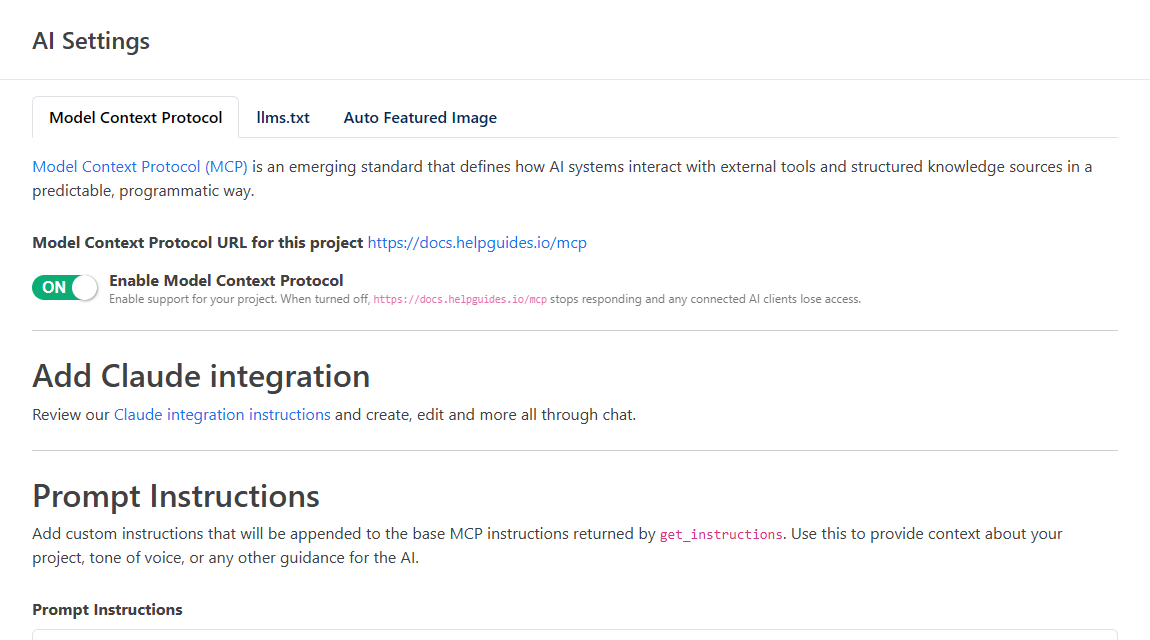
The AI Settings page controls how AI assistants connect to your project and how HelpGuides uses AI on your behalf. Open your project and click AI Settings in the menu. The page has three tabs: Model Context Protocol, llms.txt and Auto Featured Image.
This tab has everything you need to connect an AI assistant such as Claude or ChatGPT to your project using Model Context Protocol (MCP).
Model Context Protocol URL for this project shows your project's MCP address. Click it to copy it. It's always your site's domain followed by /mcp:
Paste this URL into your AI assistant. See Add Claude as an MCP Connector and Add ChatGPT as an MCP Connector.
The Enable Model Context Protocol switch saves as soon as you change it. When it's off, your MCP URL stops responding and any AI assistant that's already connected loses access. Turn it back on and assistants can connect again.
AI assistants call the get_instructions tool to learn how to work with your project. Anything you enter under Prompt Instructions is added to the end of those instructions, under an Additional Instructions heading. Use it for your audience, tone of voice, product names, or rules such as how to format steps. Write in Markdown, then click Save Instructions.
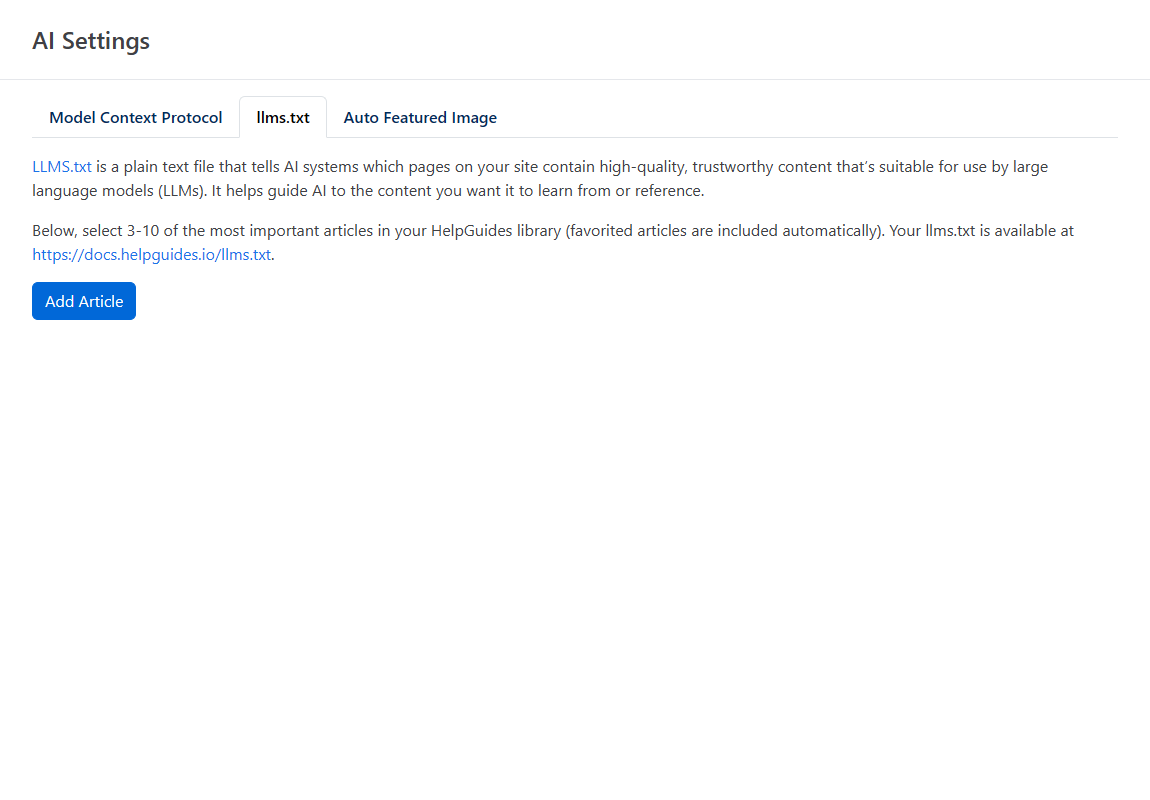
This tab lists the articles featured in your project's llms.txt file, with a link to it at https://YOUR-DOMAIN/llms.txt. Feature 3 to 10 of your most important articles.
To feature an article, open it in the editor and click the star icon above the title. Starred articles are included automatically, and click the star again to remove one. Only published articles appear in the file. See Using LLMS.txt.
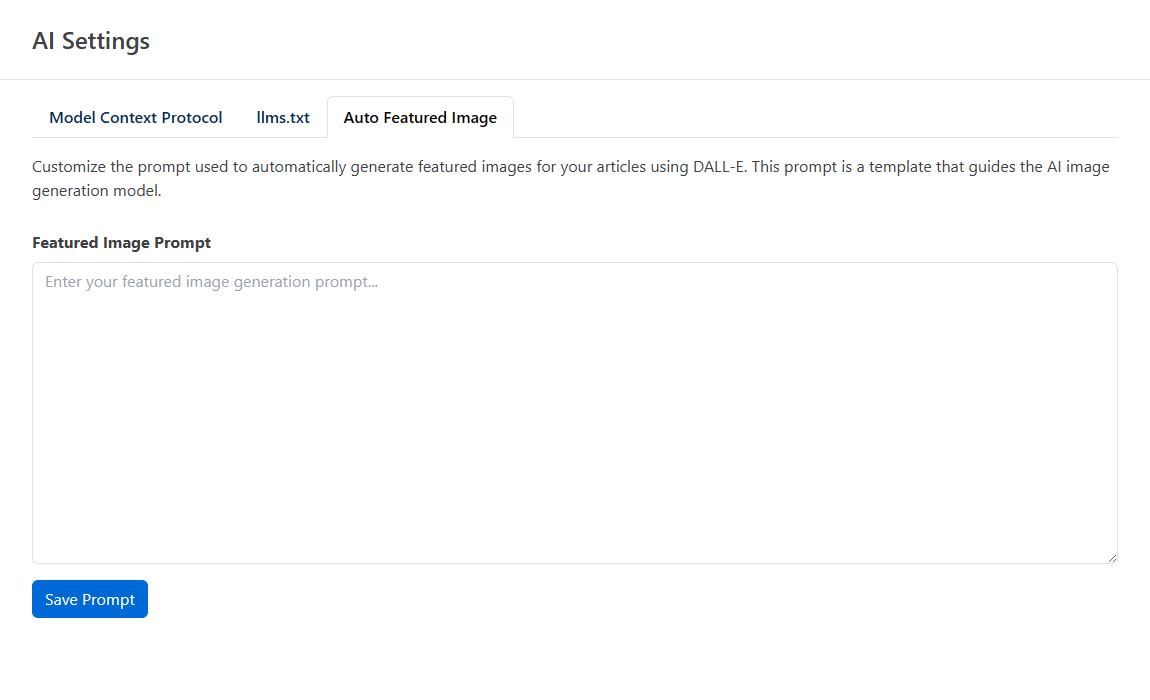
The Featured Image Prompt is the template HelpGuides uses when you click Auto Generate Featured Image in the editor. HelpGuides adds the article's title after your prompt, so describe the style you want rather than the subject. Click Save Prompt to keep it.
If you leave the prompt empty, HelpGuides asks for a professional blog featured image for the article's title. Generated featured images are landscape, 1536 × 1024 pixels. See AI Writing Tools.