Add ChatGPT as an MCP Connector

HelpGuides natively supports Model Context Protocol (MCP), which means you can connect your documentation directly to ChatGPT as a custom connector. Once connected, ChatGPT can search, retrieve, and reference your documentation in real time — without crawling or indexing.
What you'll need
- A published HelpGuides project with MCP enabled
- Your project's MCP URL (found in your project settings)
- A paid ChatGPT plan
Finding your MCP URL
Your MCP URL is unique to your HelpGuides project. It follows this format: https://[your-subdomain].helpguides.io/mcp
You can find your exact MCP URL in your project settings under the Integrations section. See Model Context Protocol for a full reference of available endpoints and capabilities.
Add a MCP Server to ChatGPT
If you have a paid ChatGPT account you can connect your HelpGuides MCP to ChatGPT.
- Sign in to ChatGPT
- On the sidebar click Plugins
- Click the + symbol to add a new plugin
- The New Plugin popup will be displayed:
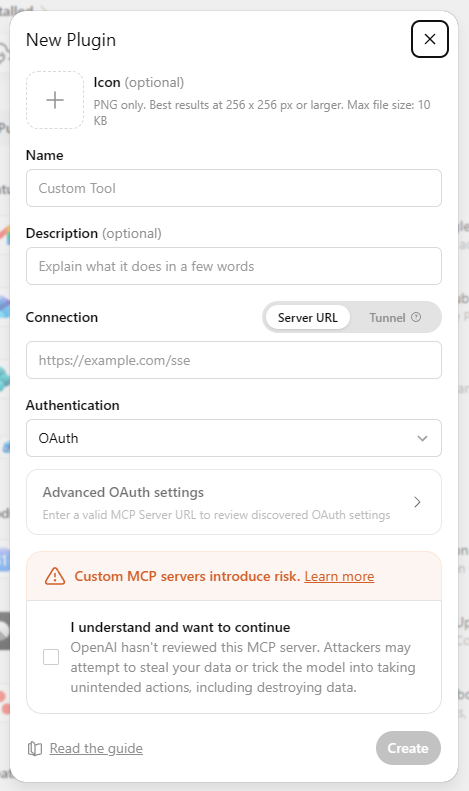
- Add a name and description for your plugin.
For example, if your project is called "ACME Documentation" name the connector "ACME Documentation". This is especially useful if you have more than one project connected to Claude.
- Paste your MCP URL into the Connection field
- Use OAuth for authentication
- Click "I understand and want to continue"
- Finally, click Create