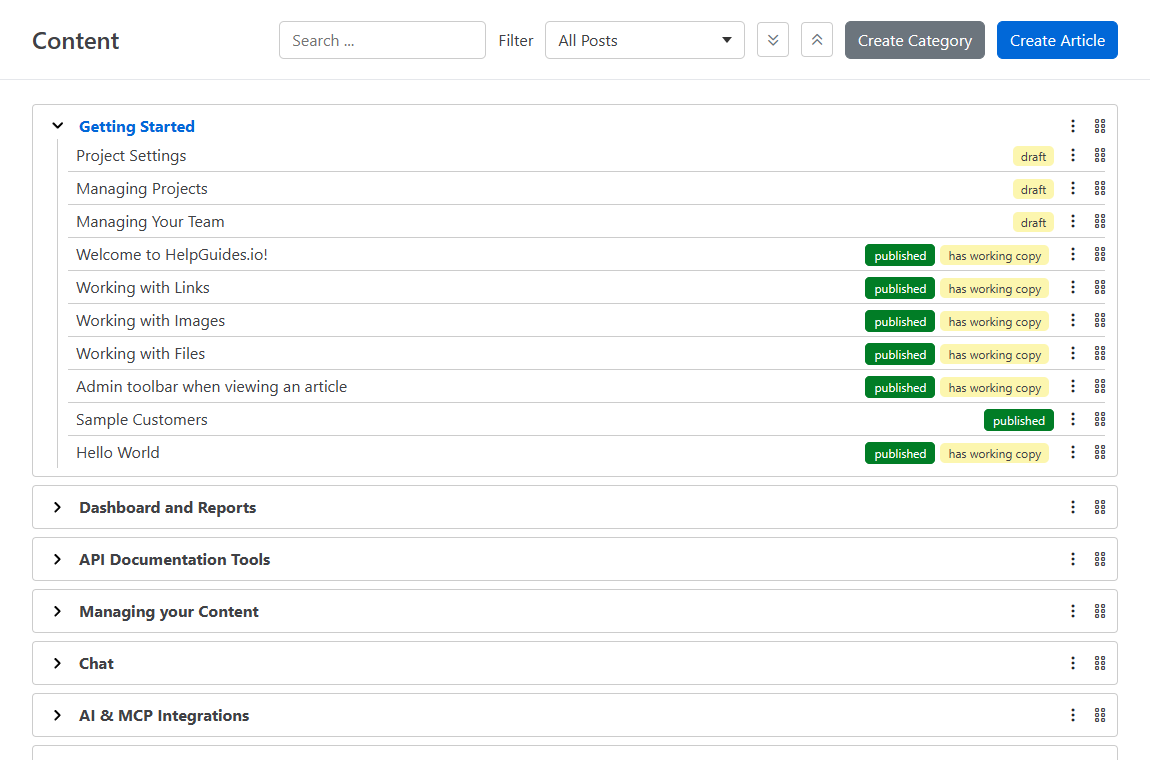
Categories group your articles and control how they're arranged on your documentation site. You manage both categories and articles from the Content page, which shows everything in your project as a tree.
Click Content in the left navigation. Each category is a box that holds its articles and any subcategories. Articles that aren't in a category appear under Uncategorized Articles at the bottom.
Each article shows its status as a pill: Published, Draft, Unlisted, Scheduled or Deleted. A published article with unpublished edits also shows Has Working Copy. Hover over an article to see when it was last updated.
Type in the Search ... box to show only articles whose titles contain your text. Use the Filter menu to show articles with one status:
| Filter | Shows |
|---|---|
| All Posts | Every article (the default) |
| Published | Live articles |
| Draft | Articles that haven't been published |
| Unlisted | Articles that are reachable by URL but hidden from navigation |
| Scheduled | Articles set to publish at a future date |
| Deleted | Articles in the deleted state |
While a search or filter is active, every category with a matching article is expanded and drag-and-drop is turned off. Your filter choice is remembered for the project.
Each category and article has a grip handle next to its ⋮ menu. Drag the handle to change the order of categories, or the order of articles within a category. The new order is saved as soon as you drop the item, and it's the order readers see on your site.
Moving to another categoryDragging changes the order only. To put an article or category in a different category, use Move Article or Move Category from its ⋮ menu.
Click the ⋮ icon next to any category or article to open its menu.
| Item | Menu option | What it does |
|---|---|---|
| Category | Add Article | Opens Add an article with the new article placed in this category |
| Category | Delete Category | Deletes the category. Only shown when the category is empty |
| Category | Edit Category | Opens the category's name, description, image and colors |
| Category | Move Category | Moves the category under another category, or to the top level |
| Article | Edit Article | Opens the article in the editor |
| Article | Move Article | Moves the article to a different category |
| Article | View Article | Opens the published article on your site in a new tab |
| Article | Copy Article URL | Copies the article's public URL to your clipboard |
You can also click an article's title to open it in the editor. Uncategorized Articles has no menu.
New categories are added at the top level. To edit one later, choose Edit Category from its ⋮ menu, make your changes and click Update.
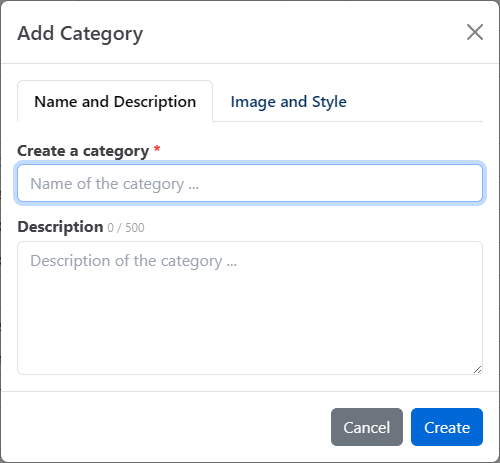
| Field | Tab | Used for |
|---|---|---|
| Name | Name and Description | The category title in the menu, on category pages and on cards. Required |
| Description | Name and Description | The text shown on the category's card, and the page description for search engines |
| Category Image | Image and Style | An icon or image shown on the category's card |
| Foreground Color | Image and Style | The text color of the category's card |
| Background Color | Image and Style | The background color of the category's card |
To make a category a subcategory, choose Move Category from its ⋮ menu. In Move To Category, search for or pick the parent category and click Move. Choose Root (no parent) to move it back to the top level. Categories can be nested more than one level deep.
You can only delete an empty category. Move or delete its articles and subcategories first, and Delete Category appears in its menu. Deleting a category doesn't delete any articles.
Your category tree becomes the navigation for your documentation site:
/category/{id}. It shows the category name, a card for each subcategory and a card for each article.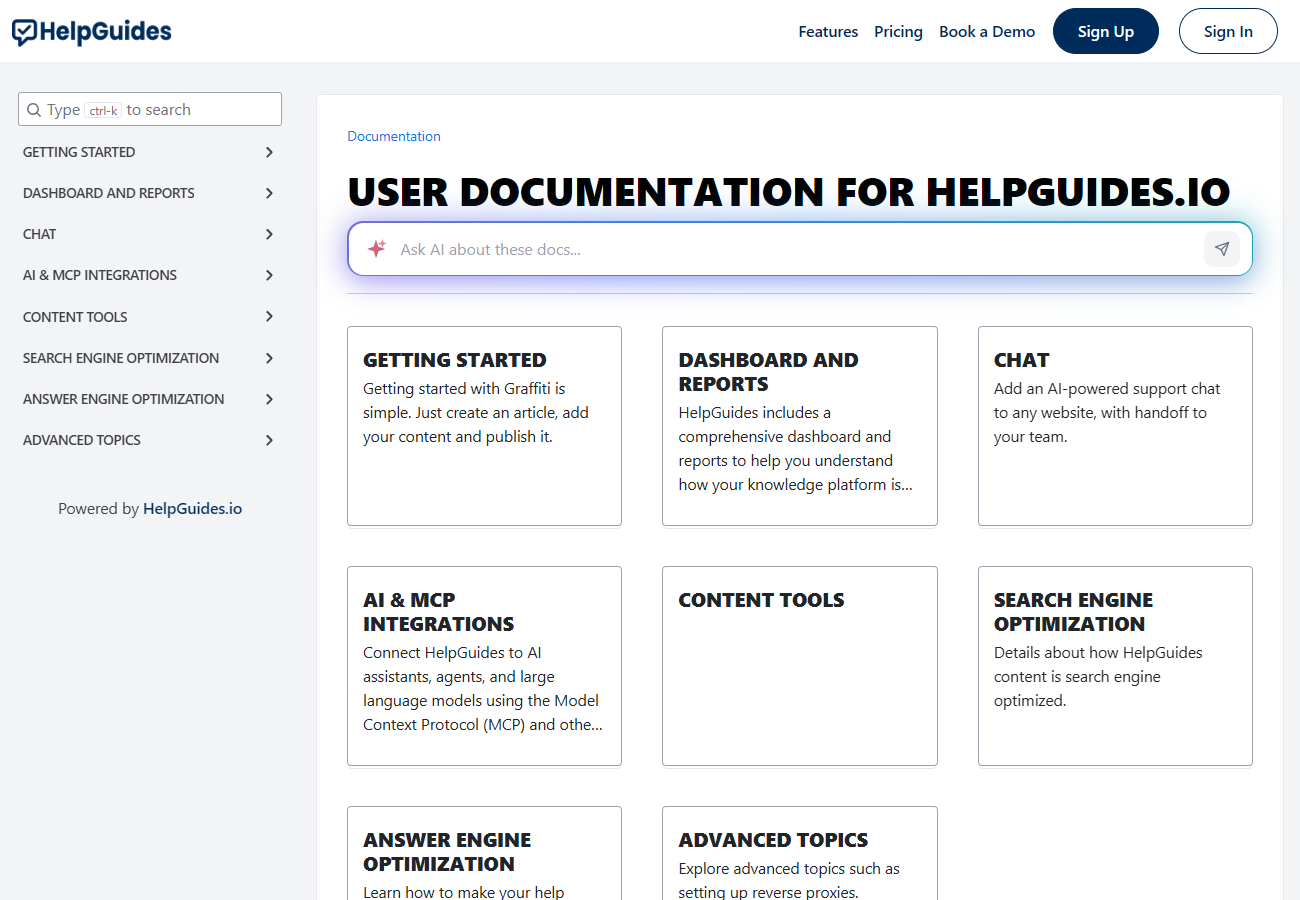
Category cards use the category's image, description and colors, so it's worth filling these in for your top-level categories. You can also show a category's subcategories inside an article with the subcategories block.