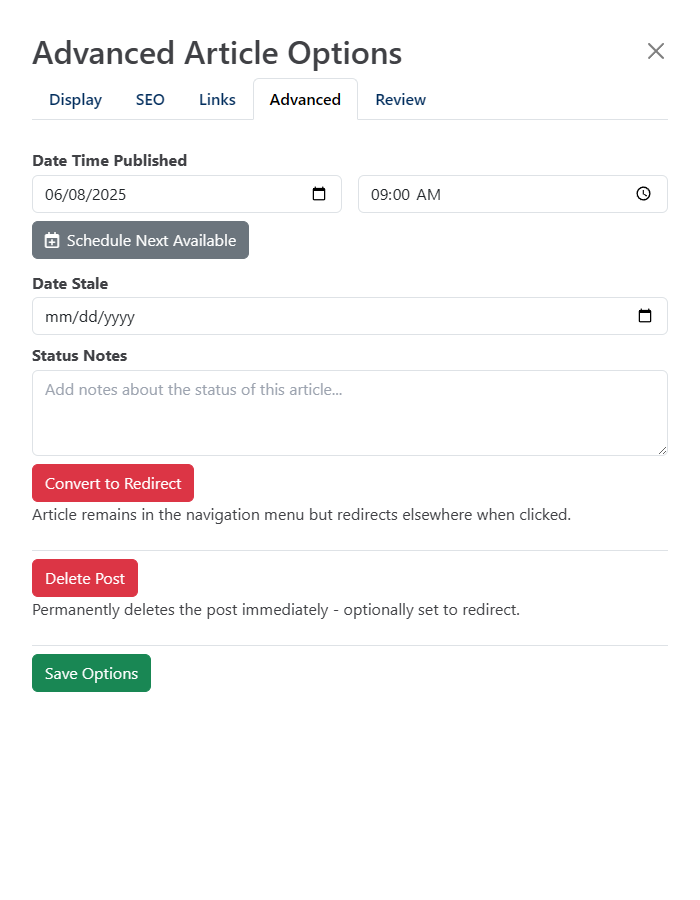
You can write an article now and have it publish automatically later. The Calendar page shows everything that's published or scheduled, so you can plan a steady flow of content.
The editor then shows Article is scheduled to publish on followed by the date and time.
Don't use Save & Publish to scheduleSave & Publish always sets the status to Published instead of Scheduled. To schedule, use Save changes and then Publish changes.
Publish your edits before the dateThe scheduled article goes live with its published content. Edits saved only to a working copy aren't included, so click Publish changes after each round of edits.
Schedule Next Available finds the first day, starting tomorrow, with no article already published or scheduled in the project. It sets the time to 9:00 AM in your time zone. Use it to publish one article a day without checking the calendar.
HelpGuides checks for scheduled articles every minute. When an article's publish date has passed, its status changes to Published and it appears on your site and in search. You don't need to be signed in.
Until then, readers can't see the article. Signed-in team members can view it with Preview.
Click Calendar in the left navigation to open the Content Calendar.
| Item | What it shows |
|---|---|
| Green entries | Published articles, on their publish date. |
| Blue entries | Scheduled articles, on the date they'll publish. |
| Filter | Show All, only Published, or only Scheduled articles. |
| Month and week views | Switch between a month grid and a single week. |
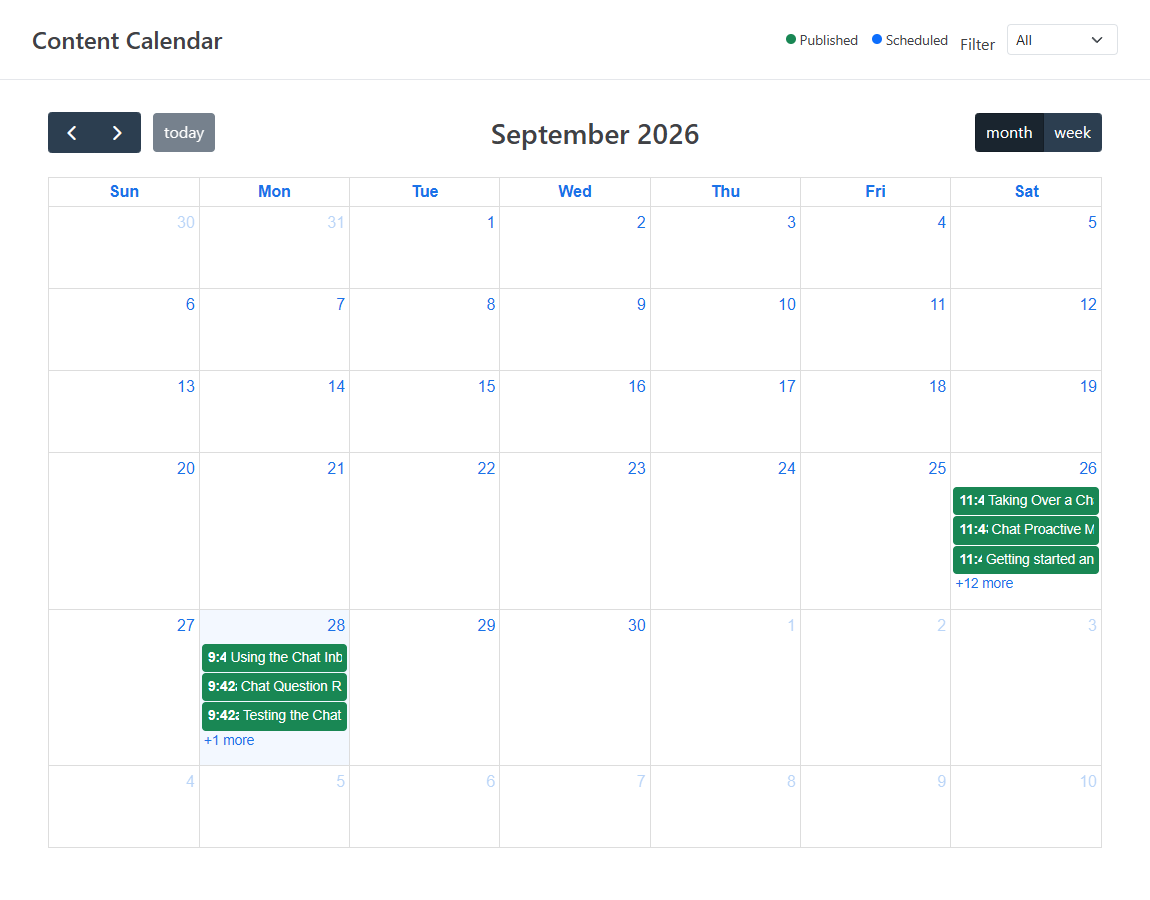
Click an entry to open that article in the editor.
To list scheduled articles instead, go to Content and choose Scheduled in the Filter list.