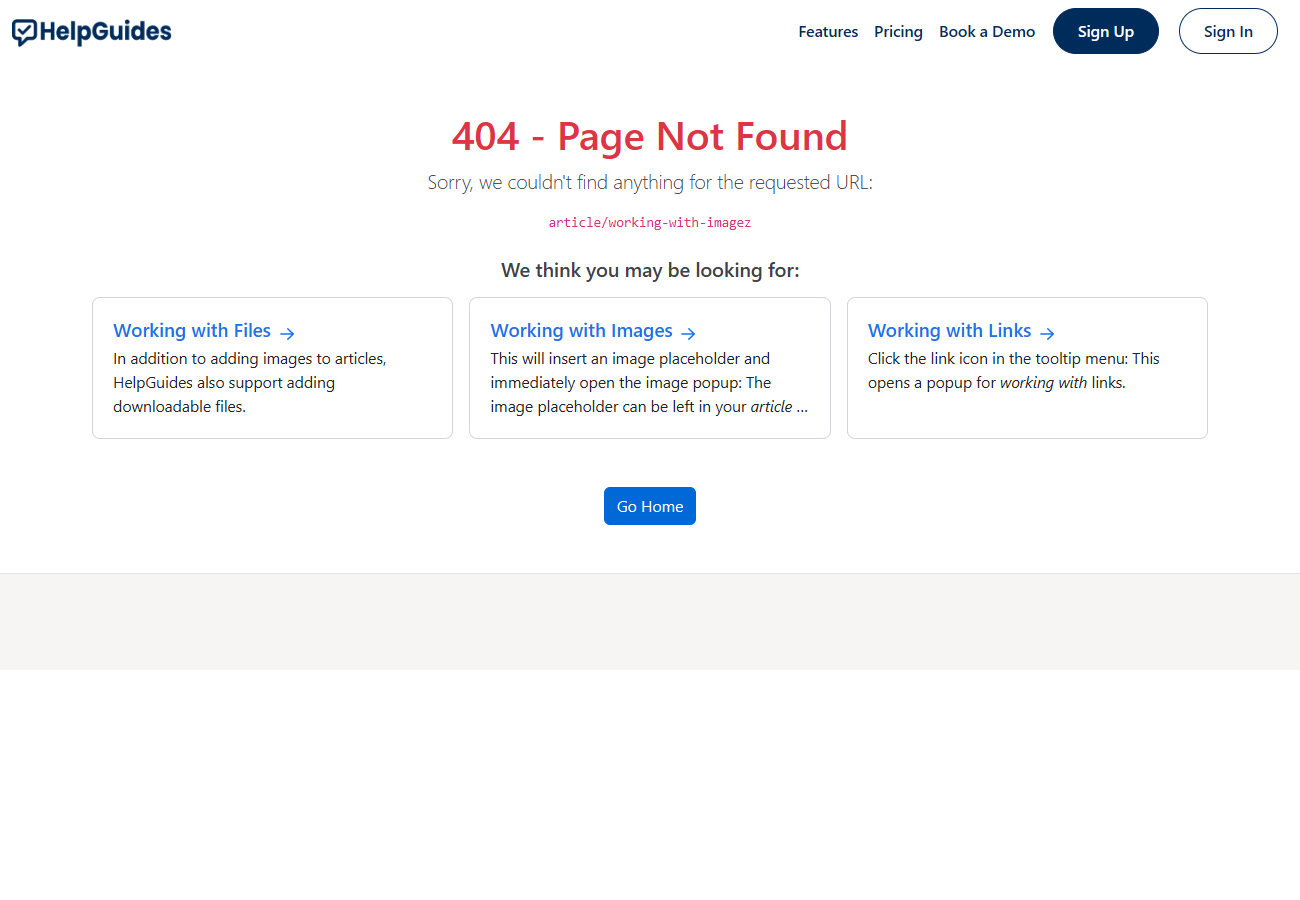
Links break when you rename, move or delete articles, or when someone mistypes a URL. HelpGuides handles this in three ways: a smart 404 page that points readers to the closest articles, a report of every URL that wasn't found, and redirects that send old URLs to the right place.
When a reader requests a URL that doesn't exist, HelpGuides shows a 404 - Page Not Found page with the URL they asked for. It also searches your published articles using the words in the URL and lists up to three matches under We think you may be looking for:. For example, a request for /how-to-create-a-segment suggests articles about creating segments.
The 404 page tells search engines not to index it. Readers also land on it when they request an article that isn't published yet.
Each time the 404 page is shown, HelpGuides records the requested path. Automated probes for things like wp-admin, .php or .env files are ignored so they don't clutter your report.
To open the report, click Housekeeping in the left navigation, then click the Not Found (404) heading on the card. The card only appears when at least one URL has been logged. You can also go straight to /project/{projectuid}/reports/notfound.
The report has a Not Found Errors (404) chart showing 404s per day for the date range you choose with Filter, and a table of the URLs requested in that range:
| Column | Shows |
|---|---|
| URL | The path that wasn't found. Click it to open the detail page |
| Occurrences | How many times it was requested in the date range. The table is sorted by this column |
| Redirect Type | 301 or 302 if you've since added a redirect for this URL |
| Redirects To | Where that redirect sends readers |
| Trash icon | Clears this URL's entries from the report |
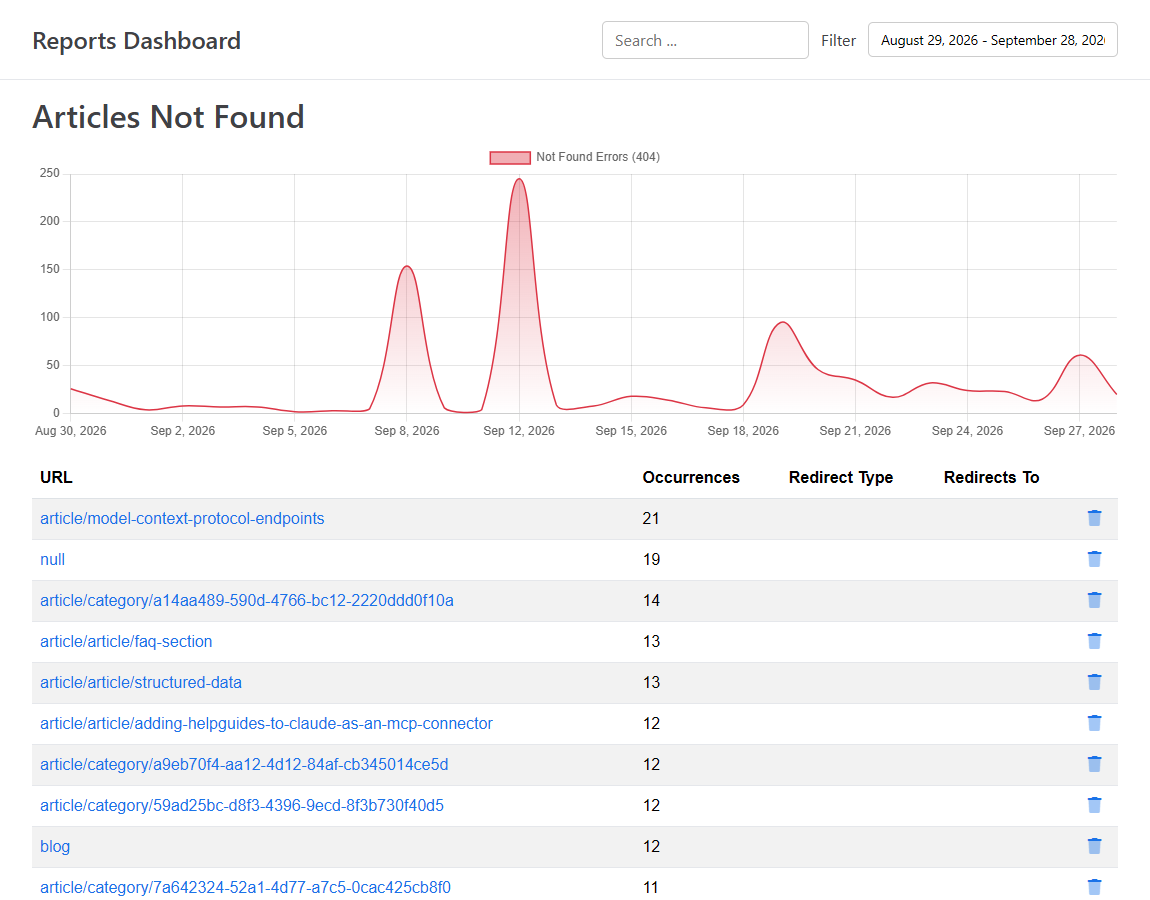
Use Search ... to find a particular URL. Clearing an entry only removes it from the report; if readers keep requesting the URL, it's logged again.
Click a URL in the report, or on the Not Found (404) card, to open its detail page. The page is headed Article Not Found: followed by the path, and shows a chart of requests for that URL over time.
/, or a full URL starting with https://.Use 301 when the content has moved for good. Search engines transfer the old URL's ranking to the new one. Use 302 only when the move is temporary and you plan to bring the old URL back.
Click Redirects in the left navigation to see every redirect in your project, however it was created. Each row shows the Source path, the Destination and the Type (301 or 302).
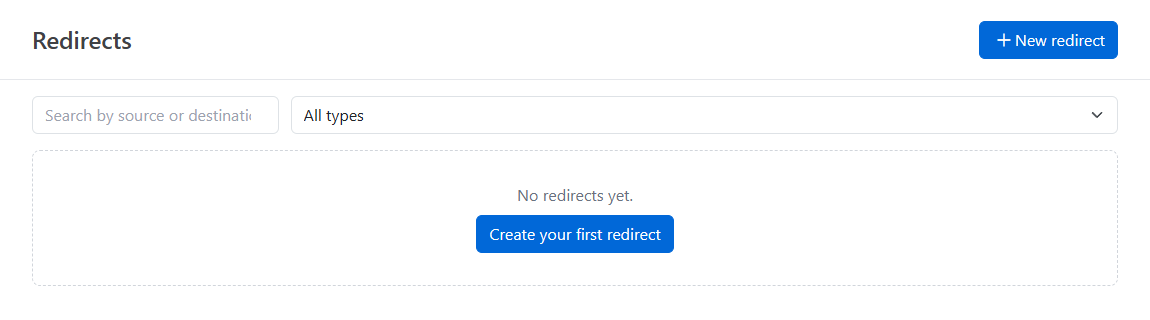
old-page./, or a full URL.301 for a permanent redirect or 302 for a temporary one. 301 is the default.A source path can only have one redirect. To change where an existing redirect goes, delete it and create it again.
Some redirects are added for you:
Editing an article's permalink doesn't add a redirect. If the article is already published, add a 301 redirect from the old path to the new one on the Redirects page, or old links will show the 404 page.
These redirects appear on the Redirects page with the ones you created, and you can delete them there.