Documentation goes out of date as your product changes. HelpGuides helps you keep it current: you can give any article a review date, and the Housekeeping page lists the articles that are due for review alongside the URLs readers can't find.
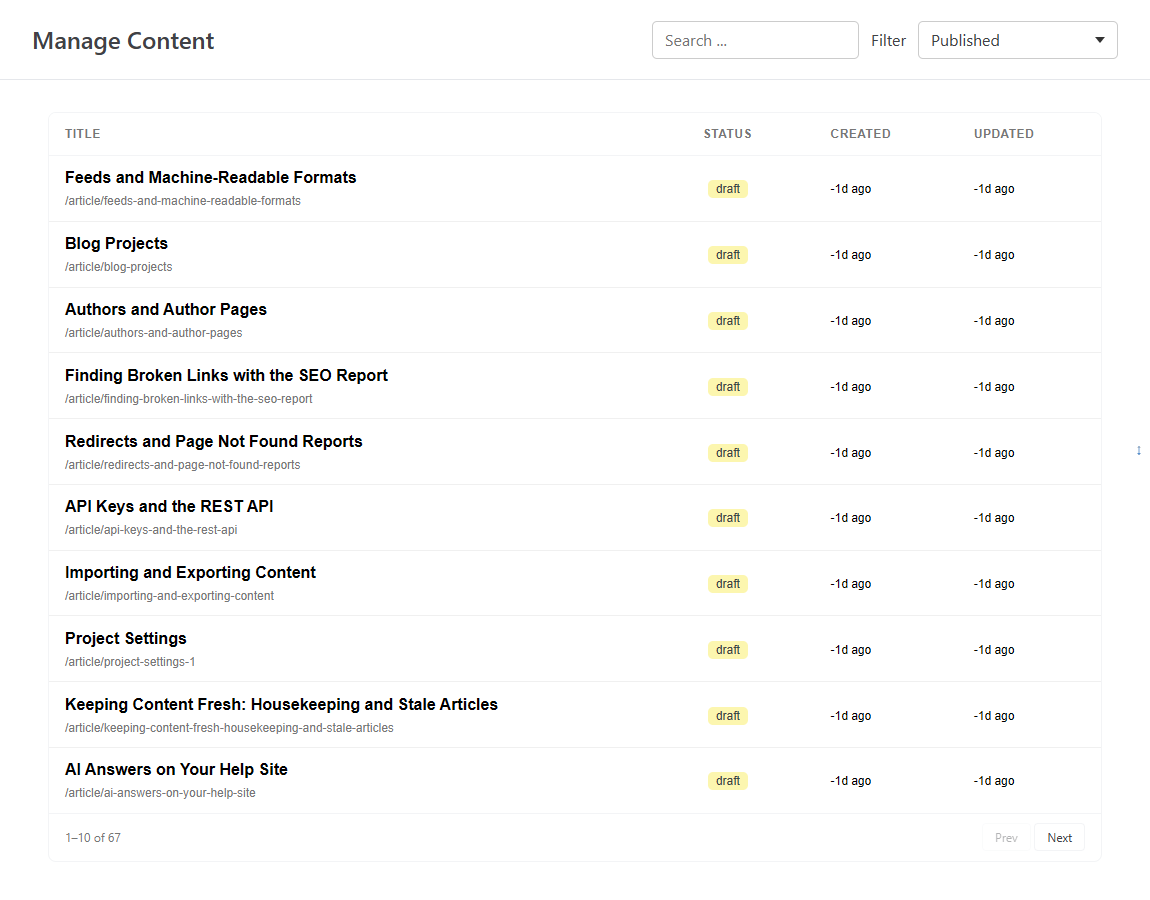
Click Housekeeping in the left navigation. The page is titled Manage Content and has three parts: a table of your articles, the Articles Flagged as Stale card and the Not Found (404) card.
The table lists articles with their Title (and URL path), Status, Created date and Updated date. It's sorted by Updated, newest first, so the articles nobody has touched in a long time are easy to find: click the Updated column heading to sort oldest first.
The table remembers your sort order, search and filter the next time you visit.
This card lists up to 10 published articles whose stale date has passed, with the Title and Stale Date of each. Click a title to open the article. When nothing is due, the card shows No Stale Articles.
This card lists the top 10 URLs on your site that readers requested but that don't exist, with the number of Requests for each. It only appears when there's at least one. Click a path to see its details and add a redirect, or click the Not Found (404) heading to open the full report. See Redirects and Page Not Found Reports.
Give an article a stale date when you know it will need checking, for example after a planned product release or when a price or policy is due to change.
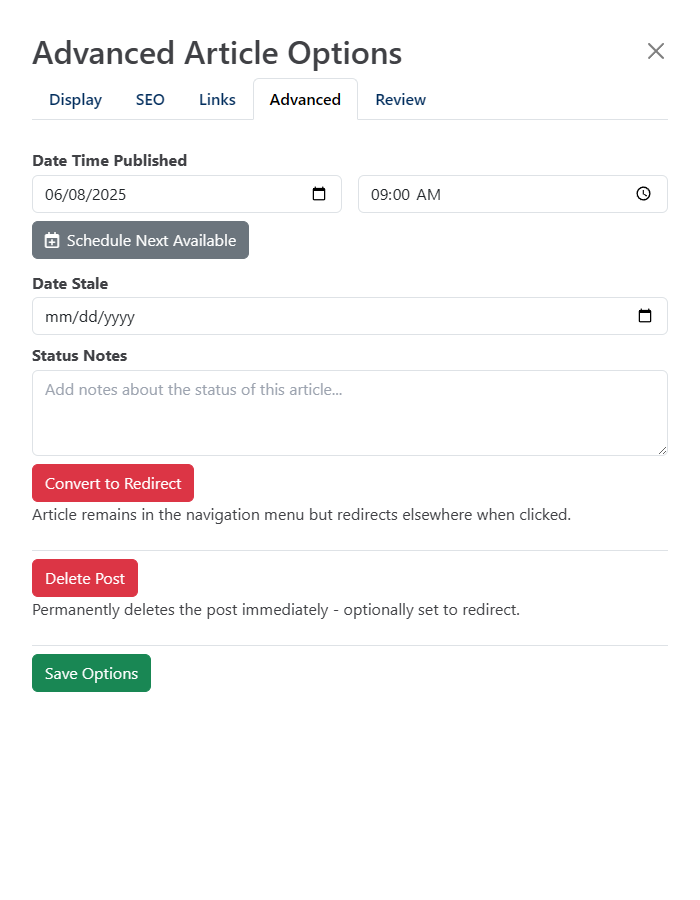
When the date arrives, the article appears in Articles Flagged as Stale, and the editor shows Article is stale as of followed by the date whenever someone opens it. The article stays published and nothing changes for readers.
After you've reviewed and updated the article, set a new Date Stale for the next review, or clear it, and click Save Options.
TipUse Status Notes as instructions for whoever picks up the review, including an AI assistant. The notes are returned alongside each stale article.
If you've connected an AI assistant through Model Context Protocol, its get_stale_articles tool lists articles whose stale date is today or earlier, with their status and status notes. See Model Context Protocol Endpoints.