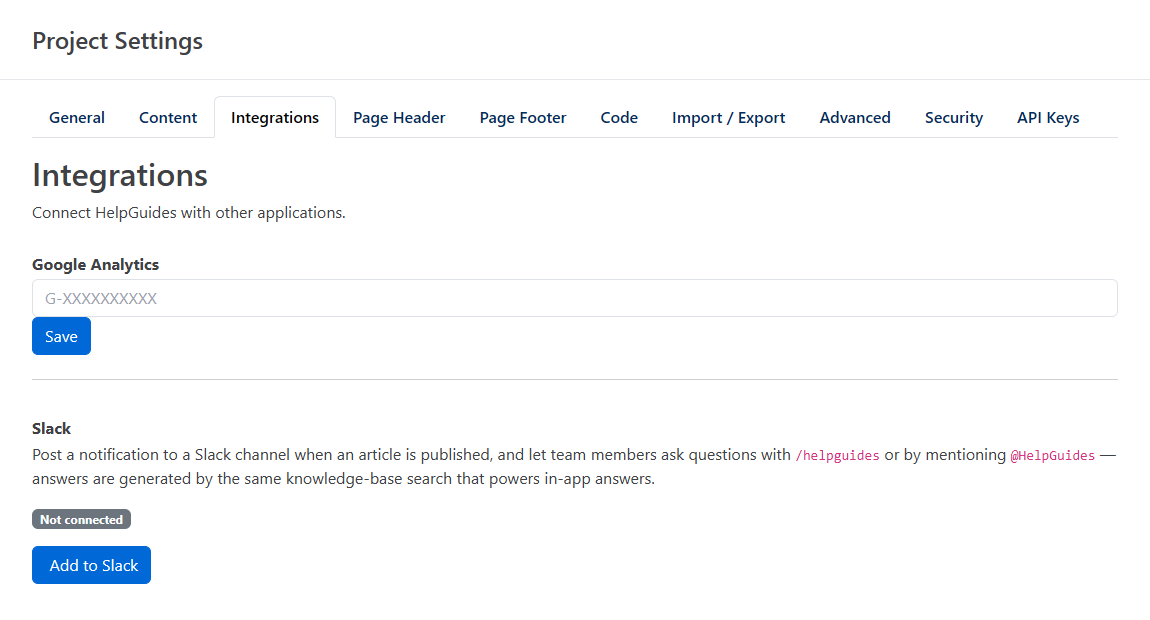
Connect a Slack workspace to your HelpGuides project to post a message when articles are published, let your team search and ask questions without leaving Slack, and get a ping when an AI agent finishes a review comment.
Slash commands and mentions answer from the project the workspace is connected to, so connect each Slack workspace to one HelpGuides project.
/invite @HelpGuidesNothing is posted until you choose a channel.
| Message | When it's posted | Setting |
|---|---|---|
| Article published | The first time an article is published. It includes the title, author, a short description and the featured image. | Always on once a channel is chosen |
| Article updated | A published article is saved again and its previous update was more than a day ago. Quick edits right after publishing don't each post a message. | Notify on updates (off by default) |
| Review comment resolved | A review comment is marked resolved, by an AI agent or by someone clicking Resolve. It shows the comment and the resolution notes, so someone can check the draft before publishing. | Notify on Cowork updates (on by default) |
Dismissed review comments never post a message.
Type /helpguides followed by what you're looking for. Slack shows Searching…, then posts the top 3 matching published articles in the channel. The slash command lists articles only; it doesn't write an answer.
Mention the app in a channel it has joined and ask your question. It replies in a thread with Thinking…, then replaces that with an answer written from your published articles and links to up to 3 sources. If your articles don't cover the question, it says so.
Answers work the same way as AI answers on your help site: only published articles are used.
On the Integrations tab, click Disconnect and confirm. The project stops posting notifications and answering questions in Slack. You can reconnect at any time with Add to Slack.
The Chat messenger uses this same Slack connection to alert your team about new and escalated conversations. See Chat Notifications and Teams.