As well as images, you can add downloadable files to your articles, or link to a Google Doc or GitHub page with a matching icon.
You can upload these file types, up to 25 MB each:
Click the + button, or type / on a new line, and choose File. The Edit a file attachment window opens.
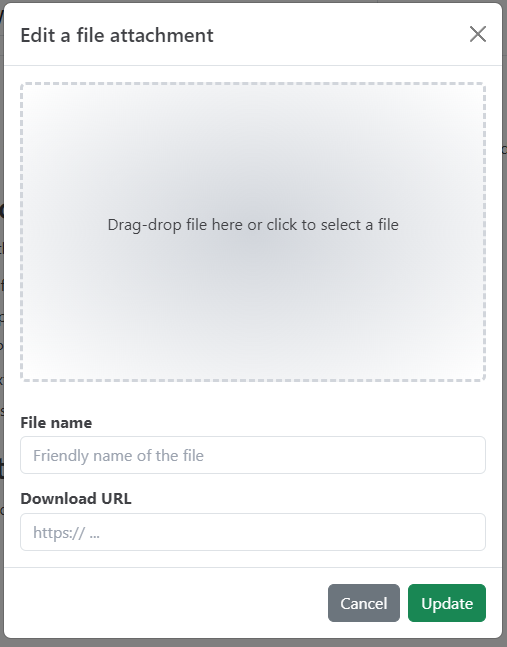
Drag a file onto the upload area, or click it to choose a file. When the upload finishes, click Update. To change the file later, choose Edit File in the block's tune menu.
| Option | Description |
|---|---|
| File name | The link text readers see. It's filled in with the uploaded file's name, and you can change it. |
| Download URL | Filled in with the file's CDN address after the upload. You can enter your own URL instead, for example a Google Doc or a GitHub page. |
Uploaded files are stored under a new, unique name, so the download URL doesn't contain the original file name. Readers see the File name you set.
The icon shown next to the file depends on its Download URL:
| URL | Icon |
|---|---|
| Ends in .doc, .docx, .xls, .xlsx, .ppt or .pptx | Microsoft Office |
| Ends in .pdf | Adobe PDF |
| On docs.google.com | Google Docs |
| On github.com | GitHub |
| Anything else | A general file icon |
Related: Working with Images, Editor Blocks Reference.