When an AI assistant such as Claude is connected to your project through the Model Context Protocol, it can add screenshots and other images to your articles as well as text. This article explains how image uploads work over MCP, and how to let Claude's code sandbox reach the upload address so they succeed.
The image file never passes through the AI conversation. Instead, the assistant uploads it straight to HelpGuides storage, then asks HelpGuides to publish it. It takes four tool calls (see Model Context Protocol Endpoints for every parameter):
curl. This is the only step that runs on the assistant's side.Images must be PNG, JPEG, GIF or WebP files of 5 MB or less. The file type is checked from the file itself, not its name.
Only step 2 makes a direct connection, and it goes to HelpGuides storage at: graffiticms.blob.core.windows.net
The other steps are ordinary MCP tool calls. Claude makes those from its own servers through your connector, so nothing else needs to be allowed. The CDN address the published images are served from only matters to people reading your articles.
In Claude on the web and in Claude Desktop, Claude runs the upload in a code sandbox in the cloud. That sandbox only connects to addresses your Claude settings allow. If HelpGuides storage isn't allowed, the upload fails before it reaches HelpGuides, usually with an error such as CONNECT tunnel failed, response 403, while create_image_upload itself succeeds.
Claude Code, and other assistants that run on your own computer, upload from your computer instead, so they work without changing any settings.
To enable file upload of images Allow network egress must be enabled for the graffiticms.blob.core.windows.net domain.
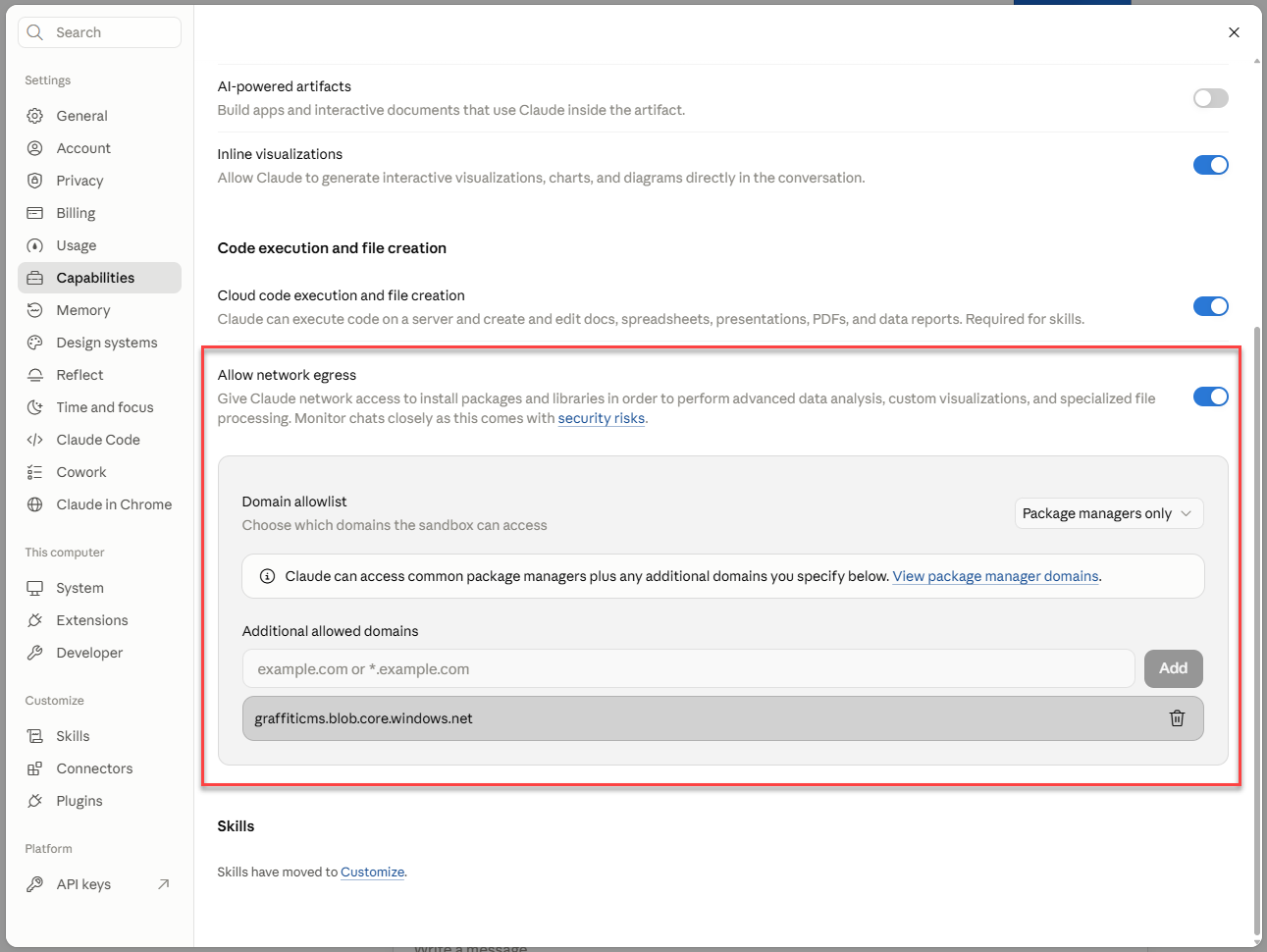
An organization owner makes this change once for everyone:
graffiticms.blob.core.windows.net to the allowed domains and save.Choosing All domains also works, but it lets Claude reach any site, so allowing just the one domain is safer.
graffiticms.blob.core.windows.net to it.Claude's settings change from time to time. For the current options, see Anthropic's help article on creating and editing files with Claude.
https:// and no path.Meanwhile, you can have Claude write the article and save it as a working copy, then add the screenshots yourself in the editor. You can drag, upload or paste them, as described in Working with Images. Or use Claude Code, which uploads from your own computer.