Using the Chat Inbox on Your Phone
The chat inbox works as an app on your phone. Once it's installed, it gets push notifications for new chats even when it's closed. There's no app store involved: you add it to your home screen from your phone's browser.
Install the inbox on an iPhone
You need iOS 16.4 or later. On iPhone, notifications only work in the installed app, not in a Safari tab.
- Open the inbox in Safari, at the same address you use on your computer.
- Tap Share, then Add to Home Screen, then Add.
- Open Inbox from your home screen and sign in. The app has its own sign-in, separate from Safari, and keeps you signed in.
- Tap the phone icon at the top, then Turn on notifications, and allow them.
Install the inbox on Android
- Open the inbox in Chrome.
- Choose Install app, or open the ⋮ menu and choose Add to Home screen.
- Open the app, tap the phone icon at the top, then Turn on notifications, and allow them.
If you declined notifications, the phone panel says they're blocked. On iPhone, go to Settings, then Notifications, then Inbox, and allow them. On Android, allow notifications for the site or app in your phone settings, then reopen the panel.
Choose which alerts this phone gets
Each phone has its own alert choices. Open the phone panel to change them:
| Alert | When you get it |
|---|---|
| Every new chat | A visitor starts a conversation, even while the AI is answering, so you can watch or step in |
| Needs a person | The AI hands the conversation over, or the visitor asks for someone |
| Replies | A visitor writes in a conversation assigned to you, or in one waiting for the team |
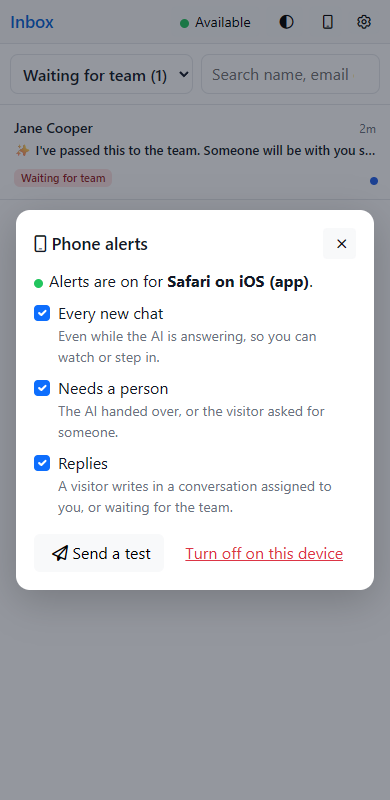
Send a test sends a test notification to this phone. Turn off on this device stops notifications on this phone only.
These choices are separate from your team's Slack and email alerts. See Chat Notifications and Teams.
Notifications and the app icon
- Tapping a notification opens that conversation.
- Alerts for the same conversation replace each other rather than piling up.
- When the visitor hasn't said who they are, a new-chat alert reads "New chat with unknown visitor".
The app icon shows a red count of what needs you: conversations waiting for the team, plus conversations assigned to you with unread replies. It matches the inbox rather than counting notifications, so it goes down as chats are picked up, even from another device. iPhone shows the number. On Android, most launchers show a dot, and Samsung phones show the number.
Available and Away don't affect phone alerts
Phone alerts are how you hear about chats when you're away from your desk, so they arrive whether you're Available or Away in the inbox. To pause them, turn them off in the phone panel, or use your phone's Focus or Do Not Disturb setting.
Working on a small screen
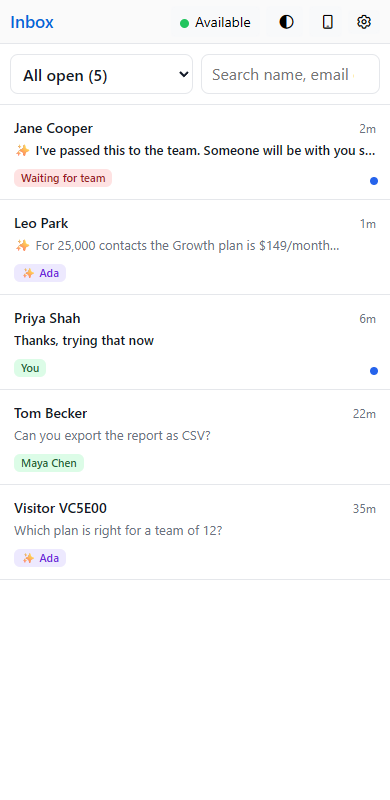
On a phone, the inbox shows one screen at a time. Pick the view at the top, tap a conversation, and tap ‹ to go back. Visitor details are hidden on small screens. Replying, notes, saved replies and taking over work as described in Using the Chat Inbox and Taking Over a Chat from the AI.
Notifications on your computer
You can turn on push notifications in a desktop browser the same way. In the inbox, click Phone alerts, then Turn on notifications. This turns them on for that browser only.
New to chat? Start with the HelpGuides Chat Overview, or see Troubleshooting Chat if something isn't working.