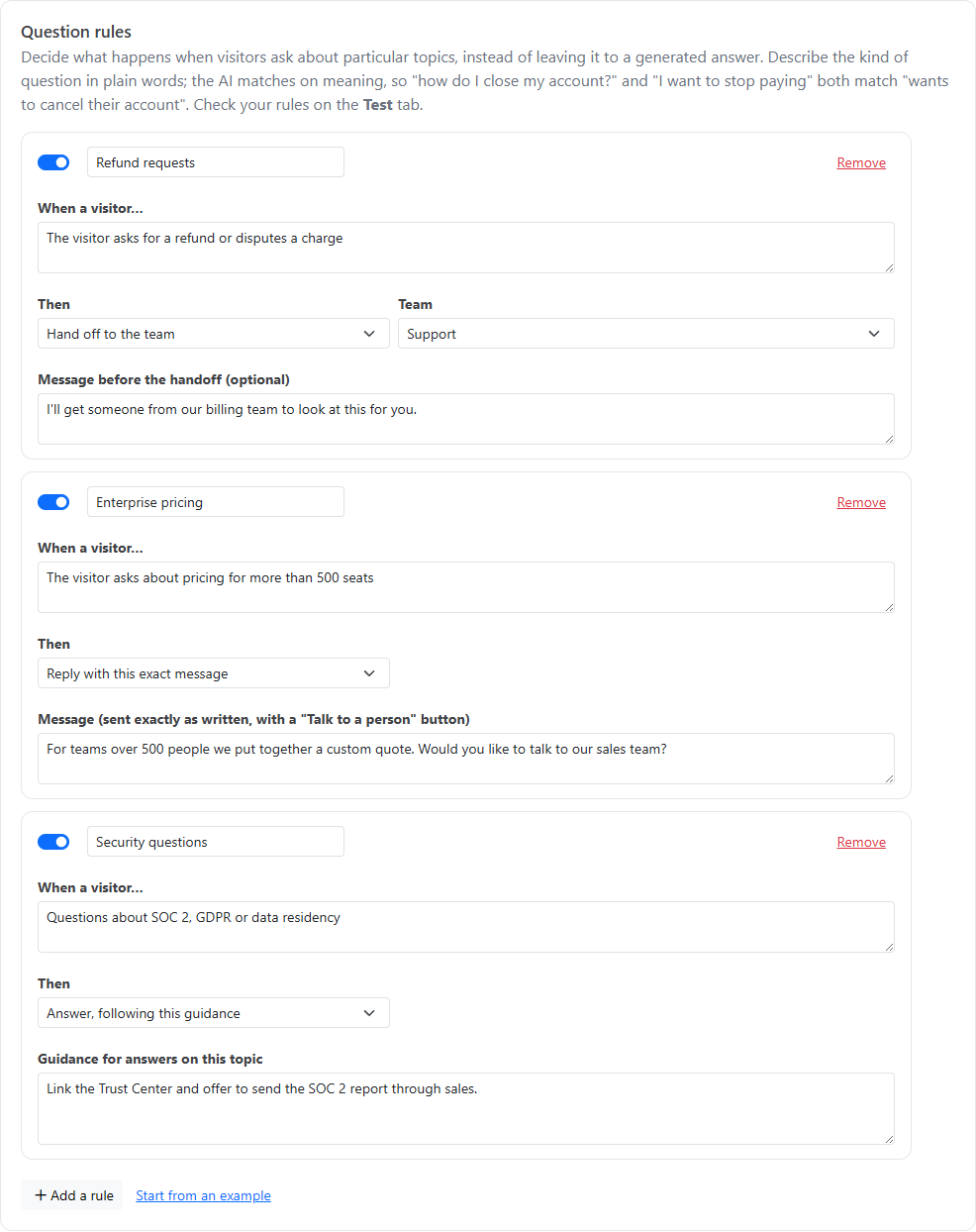
Question rules decide what happens when visitors ask about particular topics, instead of leaving it to a generated answer. For example, you can send every cancellation request straight to your billing team, reply to refund questions with your exact policy wording, or tell the AI how to answer questions about a sensitive topic.
Go to Inbox, then Messenger settings, then the Rules tab.
Each rule has an on/off switch, so you can pause a rule without deleting it. A rule that's missing something it needs is marked Incomplete: not used yet. You can have up to 30 rules.
The AI matches on meaning, not exact words. A rule for "Wants to cancel, close or delete their account" catches "can u close my acct" and "I want to stop paying" too. Describe what the visitor wants, and list the variations you care about:
| Then | What happens | Fields |
|---|---|---|
| Hand off to the team | The conversation goes to your team, as if the visitor had asked for a person. | Team: a team from Notifications, or Decide automatically. Message before the handoff (optional): said to the visitor first. |
| Reply with this exact message | The visitor gets your message exactly as written, with a Talk to a person button, instead of a generated answer. | Message |
| Answer, following this guidance | The AI still answers from your articles, following extra instructions for this topic. | Guidance for answers on this topic |
Teams are set up on the Notifications tab. See Chat Notifications and Teams.
| Field | Value |
|---|---|
| Name | Cancellation |
| When a visitor… | Wants to cancel, close or delete their account, stop their subscription, or downgrade |
| Then | Hand off to the team |
| Team | Billing |
| Message before the handoff | I'm sorry to hear you're thinking of leaving. I'll bring in someone from our team who can help with your account. |
A visitor who writes "how do I close my account?" gets your message, and the conversation goes to the Billing team's queue and alerts. The AI doesn't try to answer it.
If you'd rather let visitors help themselves, use Answer, following this guidance instead, with guidance such as "Before explaining how to cancel, mention they can pause their account instead, and link to the pause article."
Use the Test tab to confirm a rule catches the questions you expect, and doesn't catch ones it shouldn't. Each result shows the rule matched and the guidance used. Save your settings first, since tests use saved settings. See Testing the Chat AI.
See also Configuring the Chat AI Agent and Taking Over a Chat from the AI.