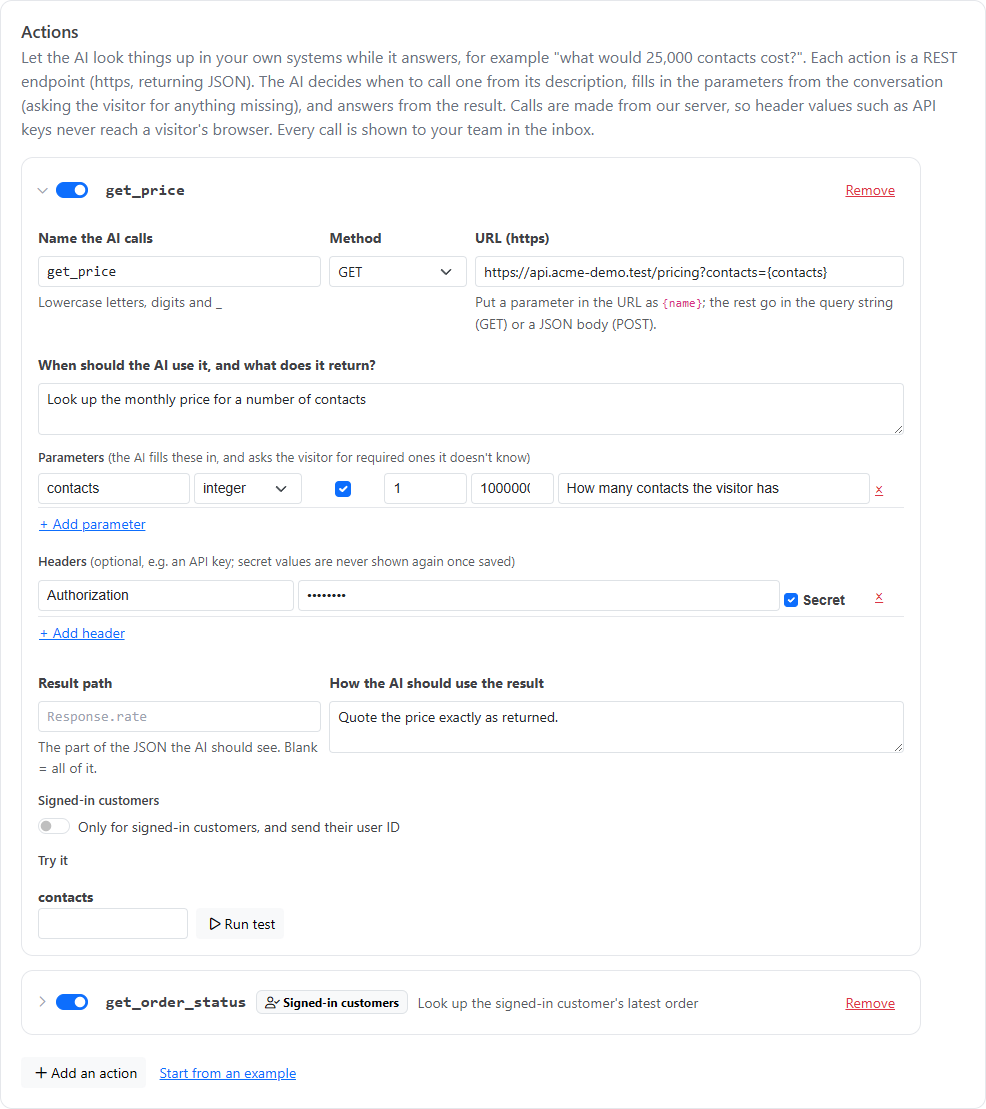
Actions let the AI agent look things up in your own systems while it answers, for example a price for a given number of users, or a signed-in customer's plan. Each action is a REST endpoint on your side. The AI decides when to call one, fills in the details from the conversation, and answers from the result.
Go to Inbox, then Messenger settings, then the Actions tab.
Calls are made from our server, not the visitor's browser, so header values such as API keys never reach visitors.
Click Add an action, or Start from an example to begin with a sample pricing action. Your endpoint must use https and return JSON. Then fill in:
| Field | What to enter |
|---|---|
| Name the AI calls | A short name such as price_contacts: lowercase letters, digits and _ |
| Method | GET puts parameters in the query string. POST sends them as a JSON body. |
| URL (https) | Your endpoint. {name} in the URL is replaced by that parameter's value. |
| When should the AI use it, and what does it return? | The AI decides from this. Say what the action answers and when to use it. |
| Parameters | What the AI fills in: name, type (string, integer, number or boolean), required, min and max, and what it means. Up to 8. |
| Headers | Optional, such as an API key. Tick Secret and the value is never shown again after saving. Up to 5. |
| Result path | The part of the JSON the AI should see, such as Response.rate. Leave blank to pass the whole response. |
| How the AI should use the result | Units, caveats and next steps, such as "total is USD per month". |
Click Save settings. Saved actions are collapsed to their name and description; click one to open it. Each action has an on/off switch, and one that's missing something it needs is marked Incomplete: the AI can't use it yet. You can have up to 20 actions.
Open an action, enter sample values under Try it, and click Run test. It calls your endpoint and shows exactly what the AI would be given. To see how the AI uses an action in an answer, ask a question on the Test tab. See Testing the Chat AI.
Your team sees each call, with its inputs and result, under the AI's answer in the inbox. Visitors never see it. See Using the Chat Inbox.
DailyStory uses two GET actions for pricing. Both have one required quantity parameter (integer) and the Result path Response.rate:
| Name | URL | When to use it | How to use the result |
|---|---|---|---|
price_contacts | https://app.dailystory.com/license/rate/contacts | Monthly price of a DailyStory plan for a number of active contacts. Use when the customer asks what DailyStory costs for their list size. | total is USD per month; quantity is the contact count actually priced (it rounds up to a pricing step; say so if it differs); included_email is monthly email sends included. Above 50,000 contacts the plan is Enterprise, so suggest talking to sales. |
price_sms | https://app.dailystory.com/license/rate/sms/credits | Monthly price of pre-purchased text message credits. Use when the customer asks what texting costs per month. | total is USD per month for the credits; overage_rate is USD per message beyond them. |
Asked "What would 25,000 contacts and 10,000 texts a month cost?", the AI calls both and answers "$400 a month for 25,000 contacts (250,000 email sends included), $390 for 10,000 texts, $790 in total." Asked just "How much does it cost?", it asks how many contacts first.
For lookups about a customer's own account, such as "What plan am I on?" or "When is my next invoice?", open the action and switch on Only for signed-in customers, and send their user ID.
user_id with a valid user_hash. Anonymous and unverified visitors never get it. See Chat Identity Verification.user_id): as {user_id} in the URL if you put it there, otherwise in the query string (GET) or JSON body (POST).When a customer signs out of your site, call the messenger's shutdown command. Otherwise the browser stays verified as them until the next sign-in. See Chat Messenger JavaScript API.
See also Configuring the Chat AI Agent and Chat Question Rules.