
HelpGuides natively supports Model Context Protocol (MCP), which means you can connect your documentation directly to Claude as a custom connector. Once connected, Claude can search, retrieve, and reference your documentation in real time — without crawling or indexing.
Your MCP URL is unique to your HelpGuides project. It follows this format: https://[your-subdomain].helpguides.io/mcp
You can find your exact MCP URL in your project settings under the Integrations section. See Model Context Protocol for a full reference of available endpoints and capabilities.

For example, if your project is called "ACME Documentation" name the connector "ACME Documentation". This is especially useful if you have more than one project connected to Claude.
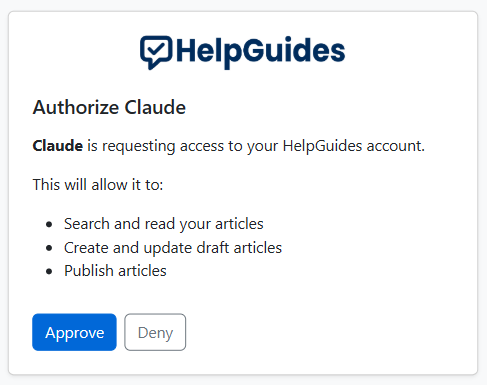
Once connected, Claude can query your documentation directly from any conversation.
Team and Enterprise plans: An org admin must first add the connector at the organization level under Organization Settings → Connectors before individual users can authenticate. Individual users follow the same steps above once the connector has been enabled org-wide.
If you use Claude Code, MCP servers are configured via the CLI rather than the connector UI. Run the following command in your terminal:
Then open a Claude Code session and run /mcp to trigger the OAuth authentication flow. Once authenticated, your HelpGuides documentation tools will be available in all Claude Code sessions.
To verify the server was added successfully:
By default, the server is scoped to the current project. Add --scope user to make it available across all your projects.
Claude Desktop uses a JSON configuration file to manage MCP servers. Add the following to your claude_desktop_config.json file:
The config file is located at:
~/Library/Application Support/Claude/claude_desktop_config.json%APPDATA%\Claude\claude_desktop_config.jsonSave the file and restart Claude Desktop. Your HelpGuides connector will be available on next launch.
Claude will now have access to your documentation for the duration of that conversation.
Once connected, Claude has access to the MCP tools exposed by your HelpGuides project, which currently include:
This enables AI-assisted documentation workflows — searching for existing coverage, drafting new articles, and updating content without leaving your conversation. For a full list of supported endpoints, see Model Context Protocol Endpoints.
Once your connector is enabled, here are some prompts to get started:
Claude will search your docs, draft content, and push updates as drafts for your review — you always have the final say before anything is published.
To disconnect HelpGuides from Claude at any time:
claude mcp remove helpguides in your terminalclaude_desktop_config.json and restart Claude DesktopThis immediately revokes Claude's access to your documentation. You can reconnect at any time by following the setup steps above.
Re-authenticate by clicking Connect next to the connector in Settings → Connectors, or run /mcp in Claude Code to re-trigger the OAuth flow.
MCP connectors are loaded at session start. Start a new conversation and enable the connector from the + menu.
Ensure your HelpGuides project has MCP and OAuth enabled in your project settings. Contact support if the issue persists.
For more on how HelpGuides implements MCP, see Model Context Protocol and Using LLMS.txt.